Journal Entries
Learn how to create, edit, post, and manage journal entries with double-entry bookkeeping.
Journal Entries
Journal entries record the debits and credits behind a double-entry company’s activity. Single-entry companies use the related Transactions workflow instead.
Journal register
Choose Journal entries in the workspace sidebar. The register summarizes entry counts by status. On Overview, recent activity lists the entries recorded most recently first, regardless of the accounting date entered on each record.
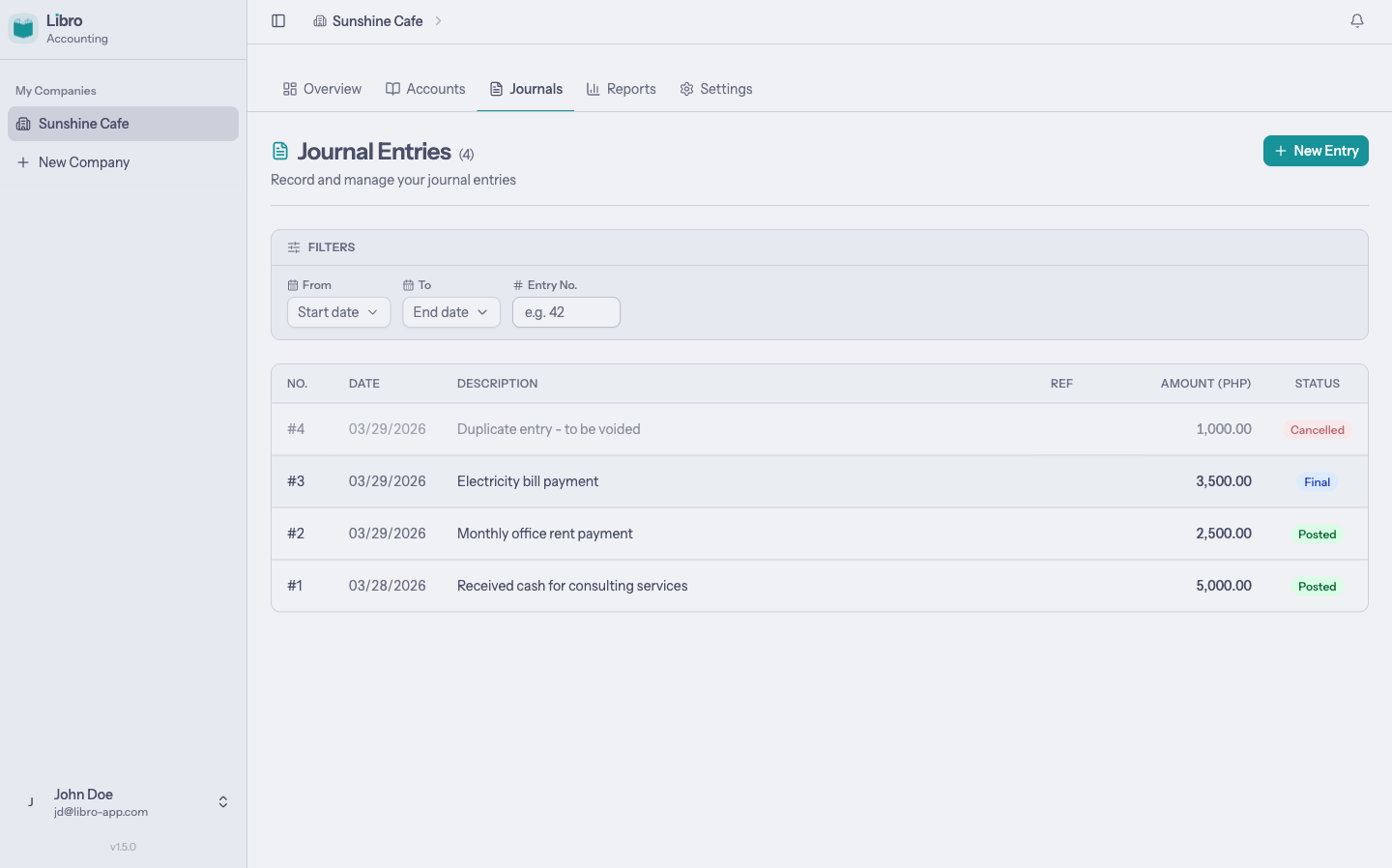
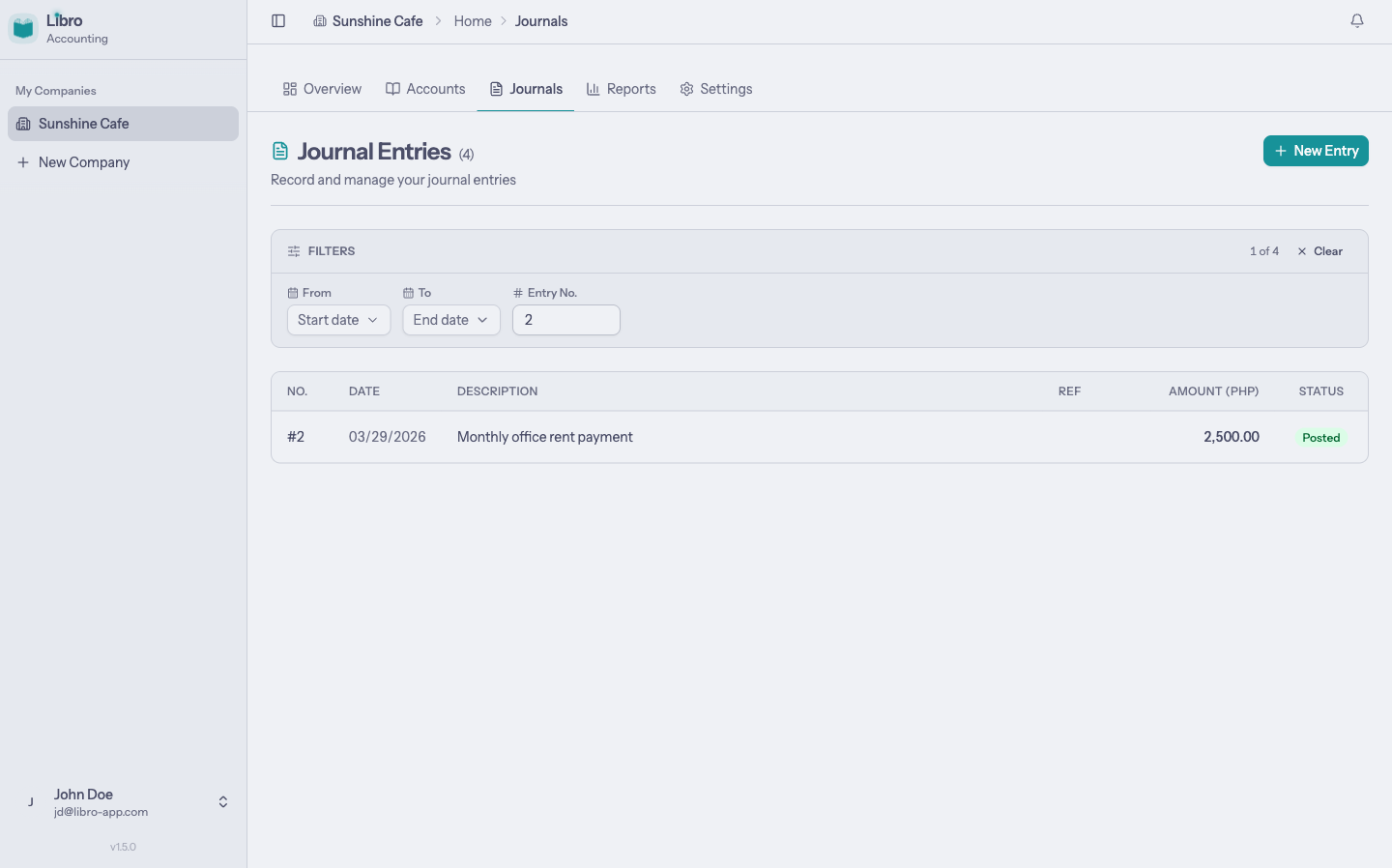
Filter the list with a date range or an entry number.
Create an entry
Choose New entry. Enter the source document date, an optional reference, and a description that explains the transaction.
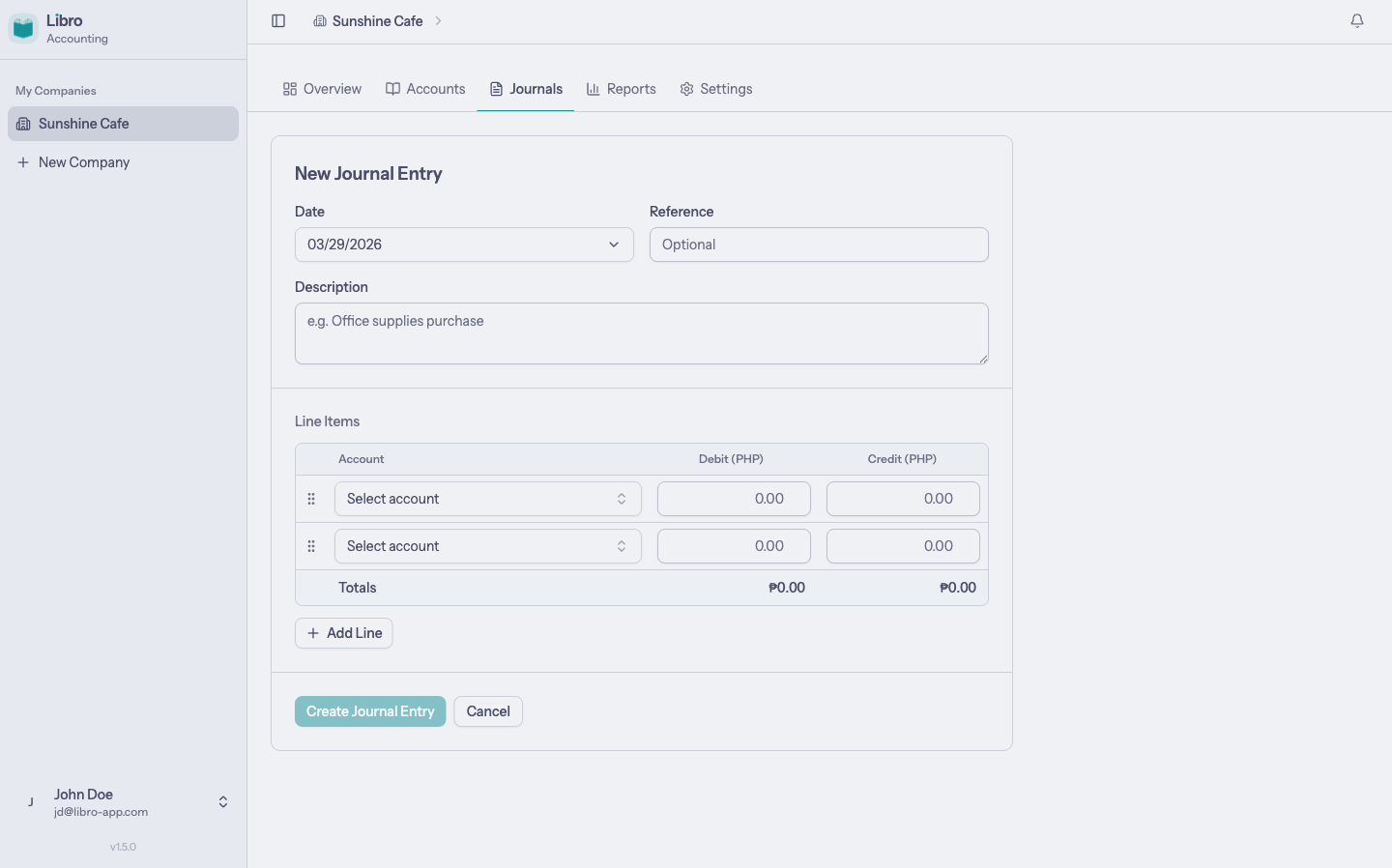
Every entry needs at least two lines. Select an account for each line and enter an amount in either Debit or Credit.
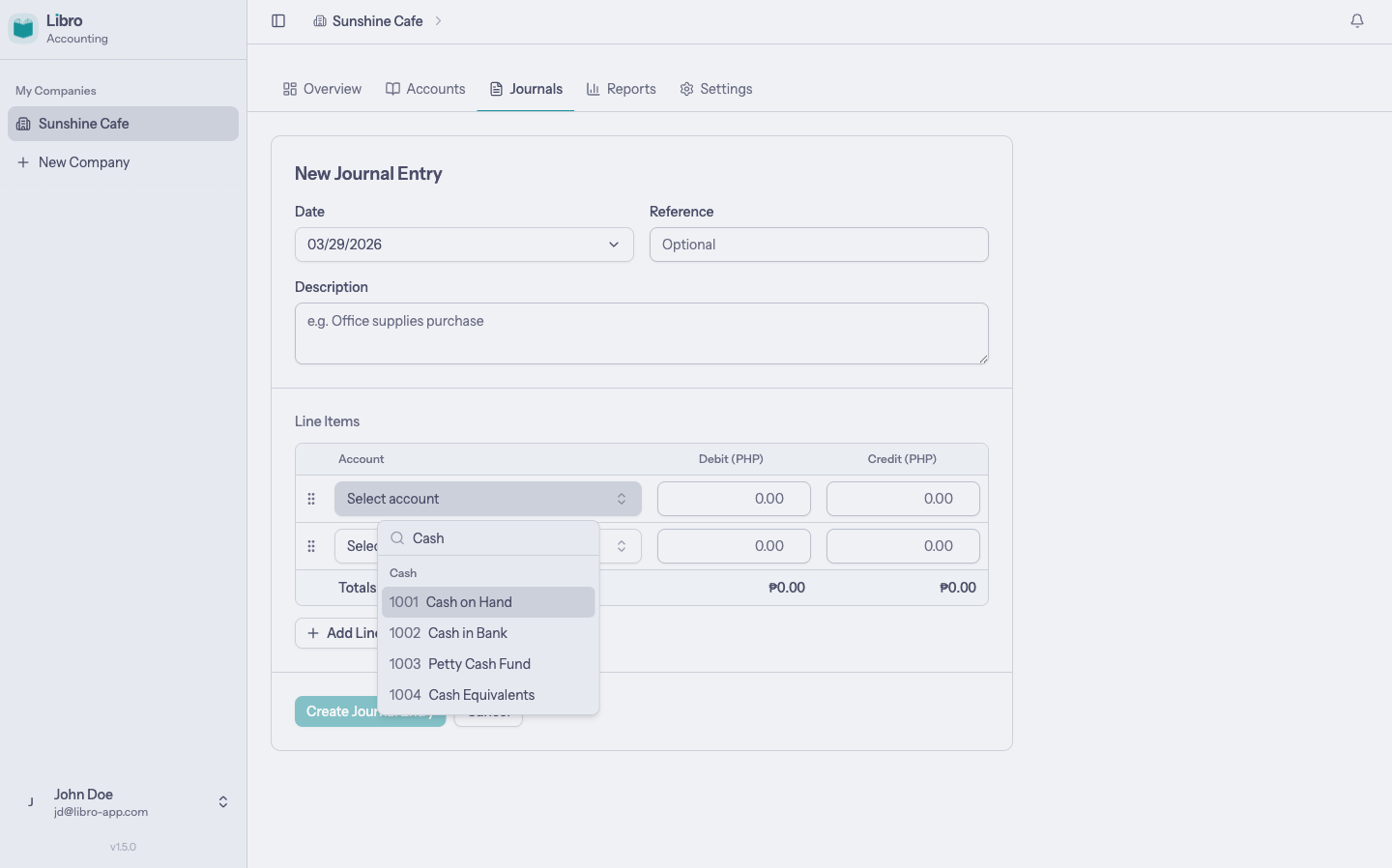
Libro continuously totals both sides. The form becomes ready when the entry is complete and debits equal credits.
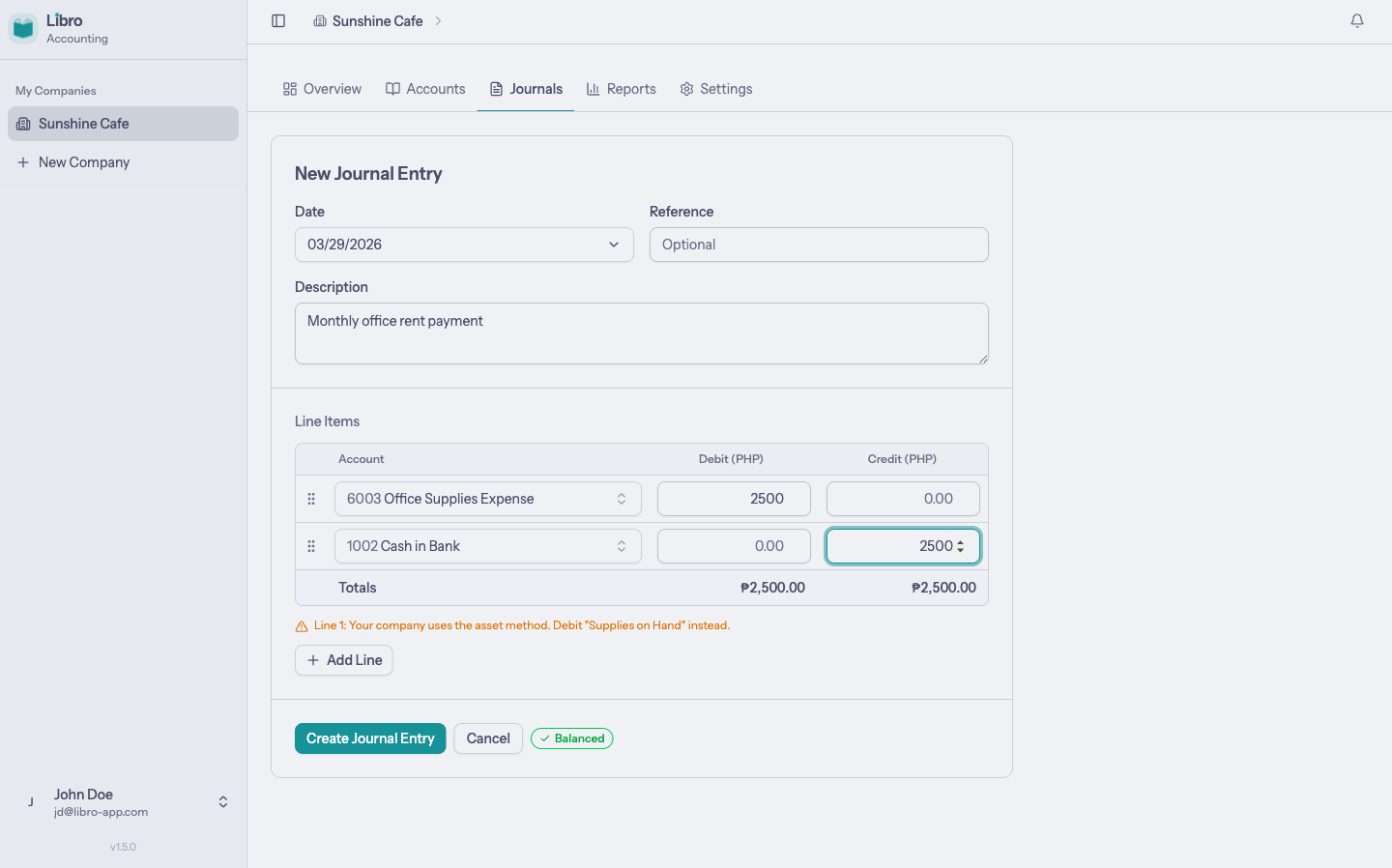
Choose Create Journal Entry to save it as a draft.
Entry statuses
Draft
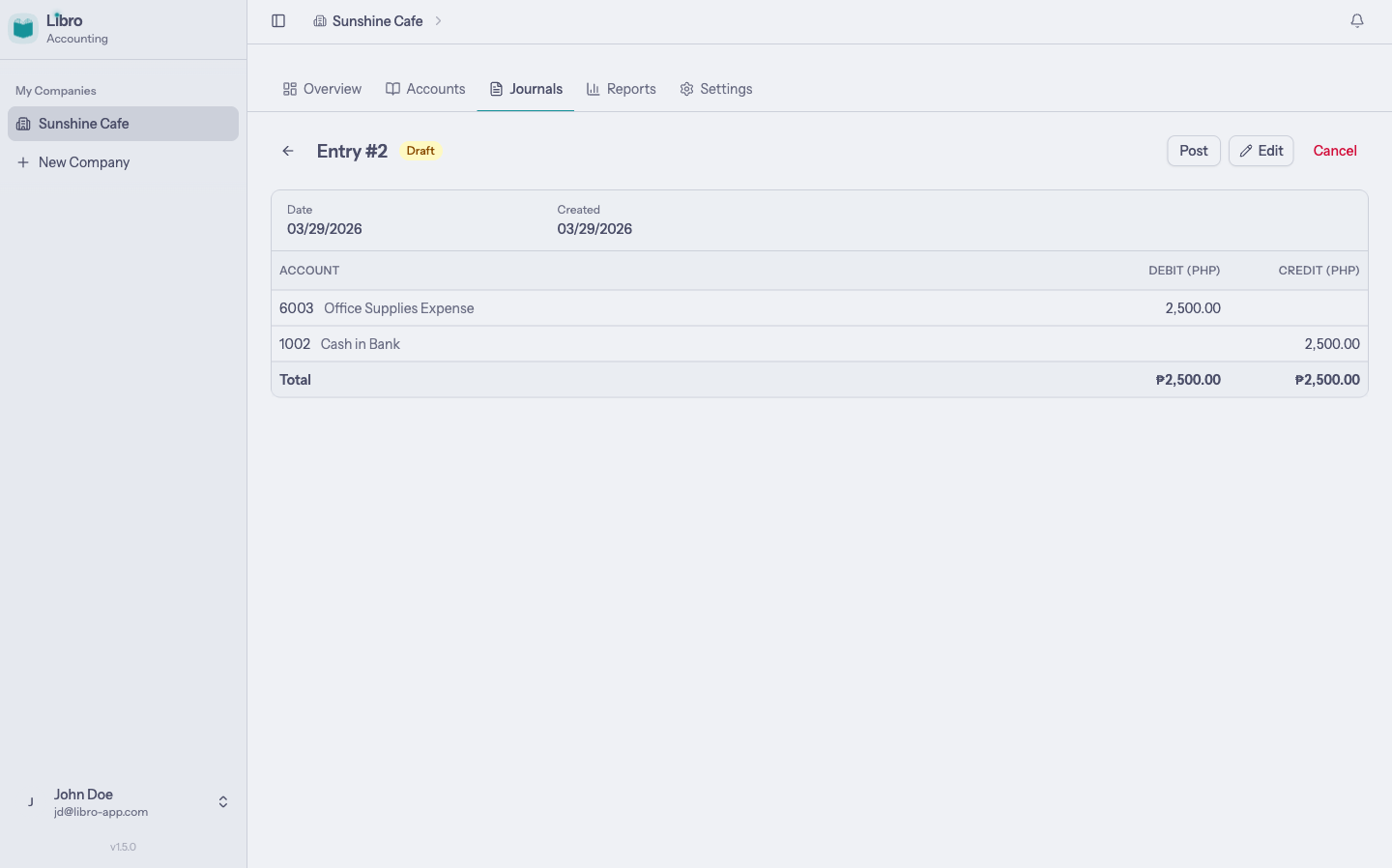
Drafts are work in progress. They can be reviewed and edited but do not affect ledgers or reports.
Posted
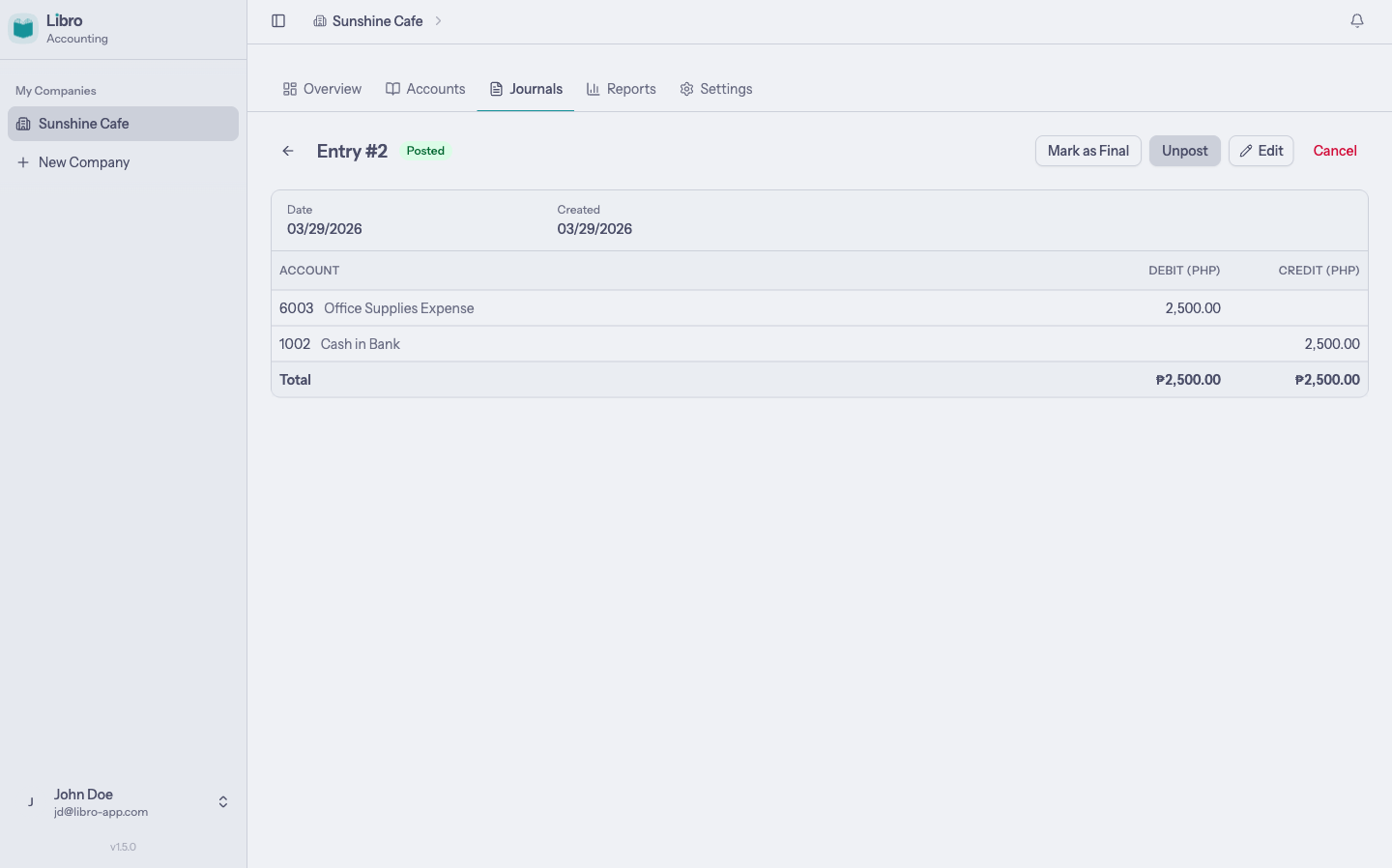
Posting an entry includes it in account balances and reports. A posted entry can still move to the final or cancelled state.
Final
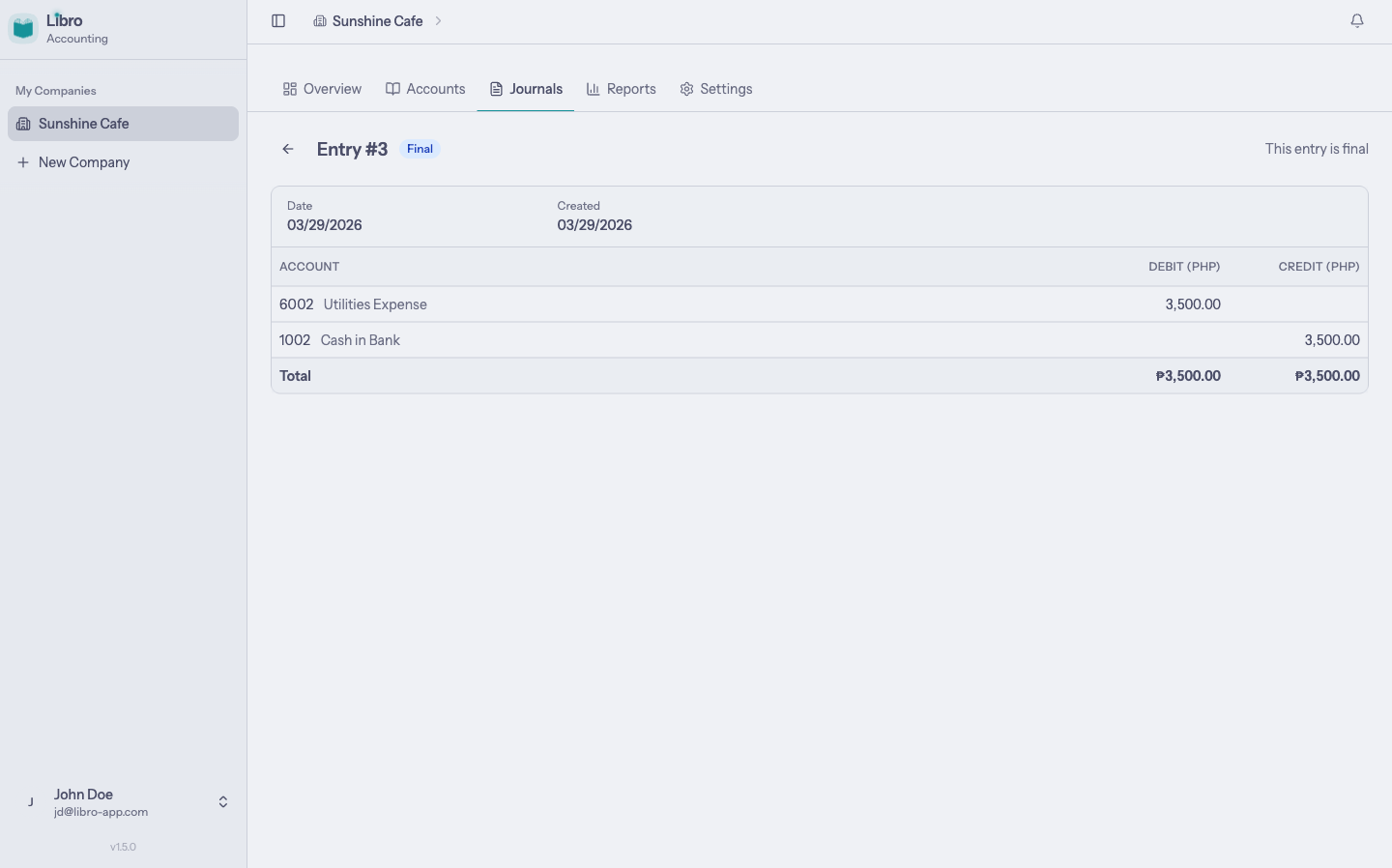
A final entry is the completed accounting record and is locked against further changes.
Cancelled
A cancelled entry remains available for audit history but no longer contributes to balances or reports.
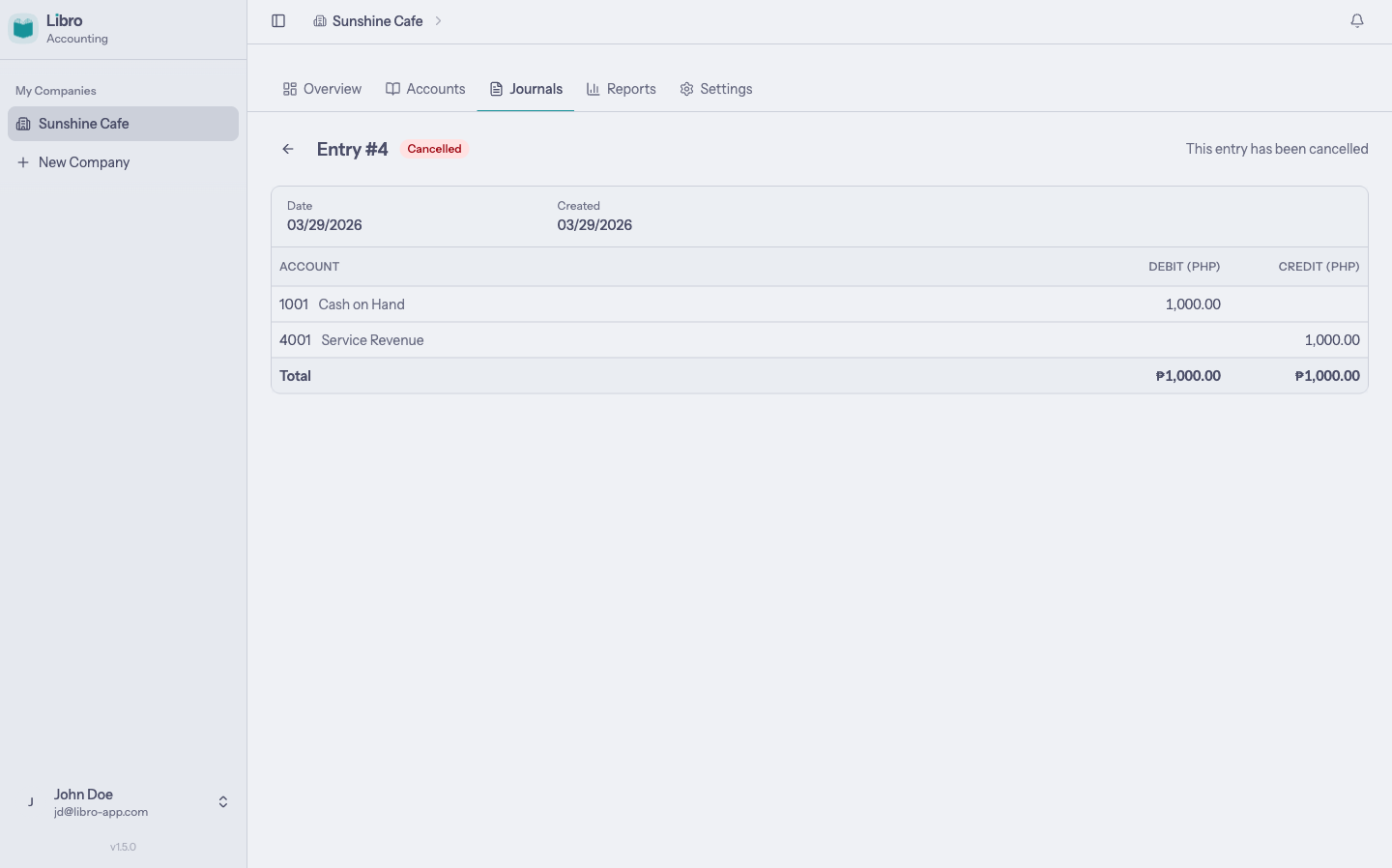
Review an entry
Open an entry from the register to see its status, reference, accounting date, value, and debit and credit lines.
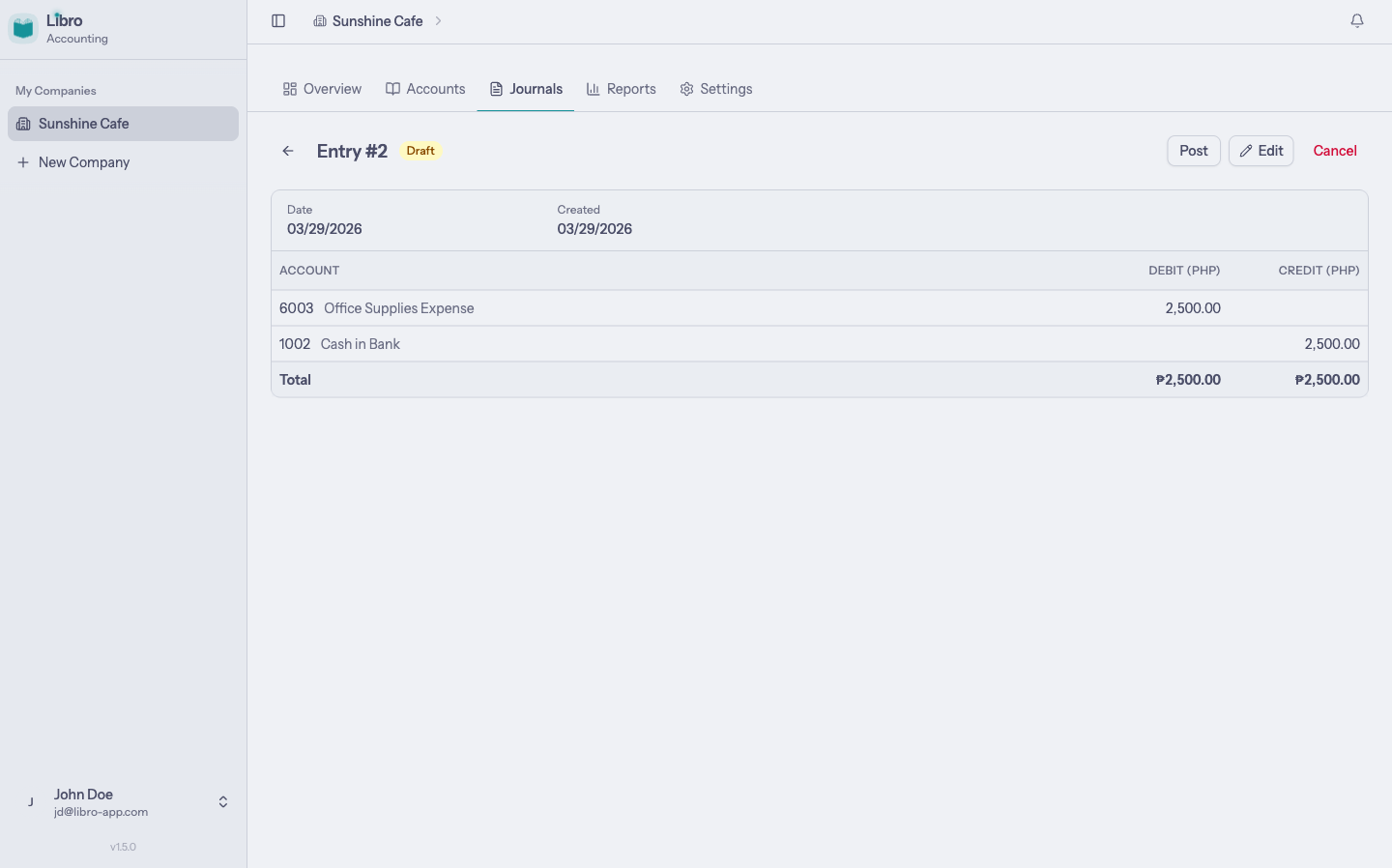
The action toolbar exposes the next valid workflow actions for the current status.
Edit an entry
Choose Edit from an editable entry. Update the details or lines, confirm that the totals still balance, and choose Update Entry.
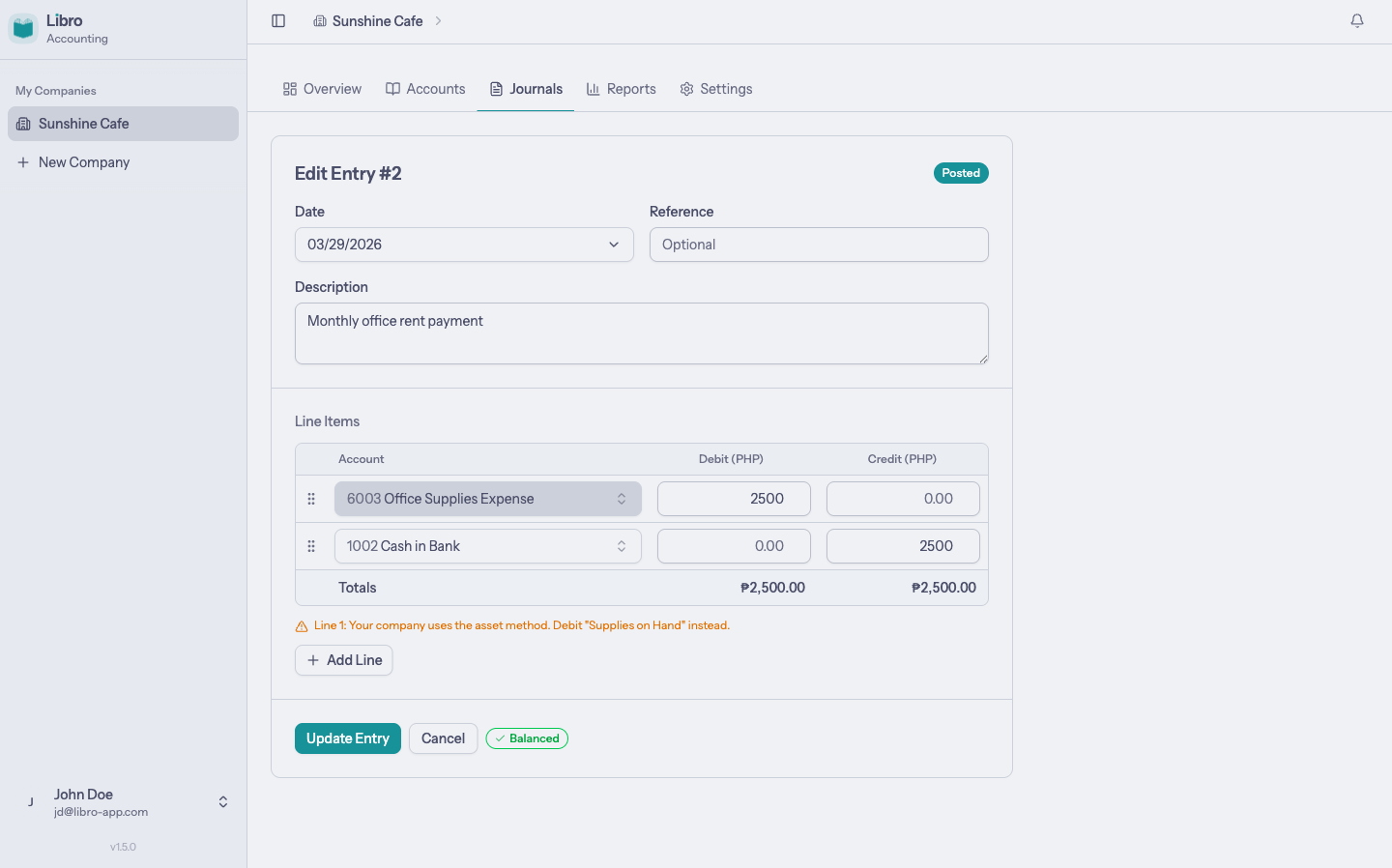
Practical checks
- Use the date on the source document.
- Add invoice, receipt, or voucher numbers in Reference.
- Write descriptions that another reviewer can understand later.
- Confirm account selection and debit/credit direction before posting.
- Finalize only after the entry is complete and supported.
See the results of posted entries in Reports.