Settings
Manage your company details, team members, data backups, and account preferences.
Settings
Libro separates settings for a company from preferences for your personal account.
Company settings
Use the workspace switcher to confirm the company you want to manage, then choose Company settings in the sidebar. The company settings area has four sections: General, Members, Data & backup, and Advanced. Choose Companies to return to the company directory without changing the active company.
General
General settings contain the legal identity and contact details used throughout Libro.
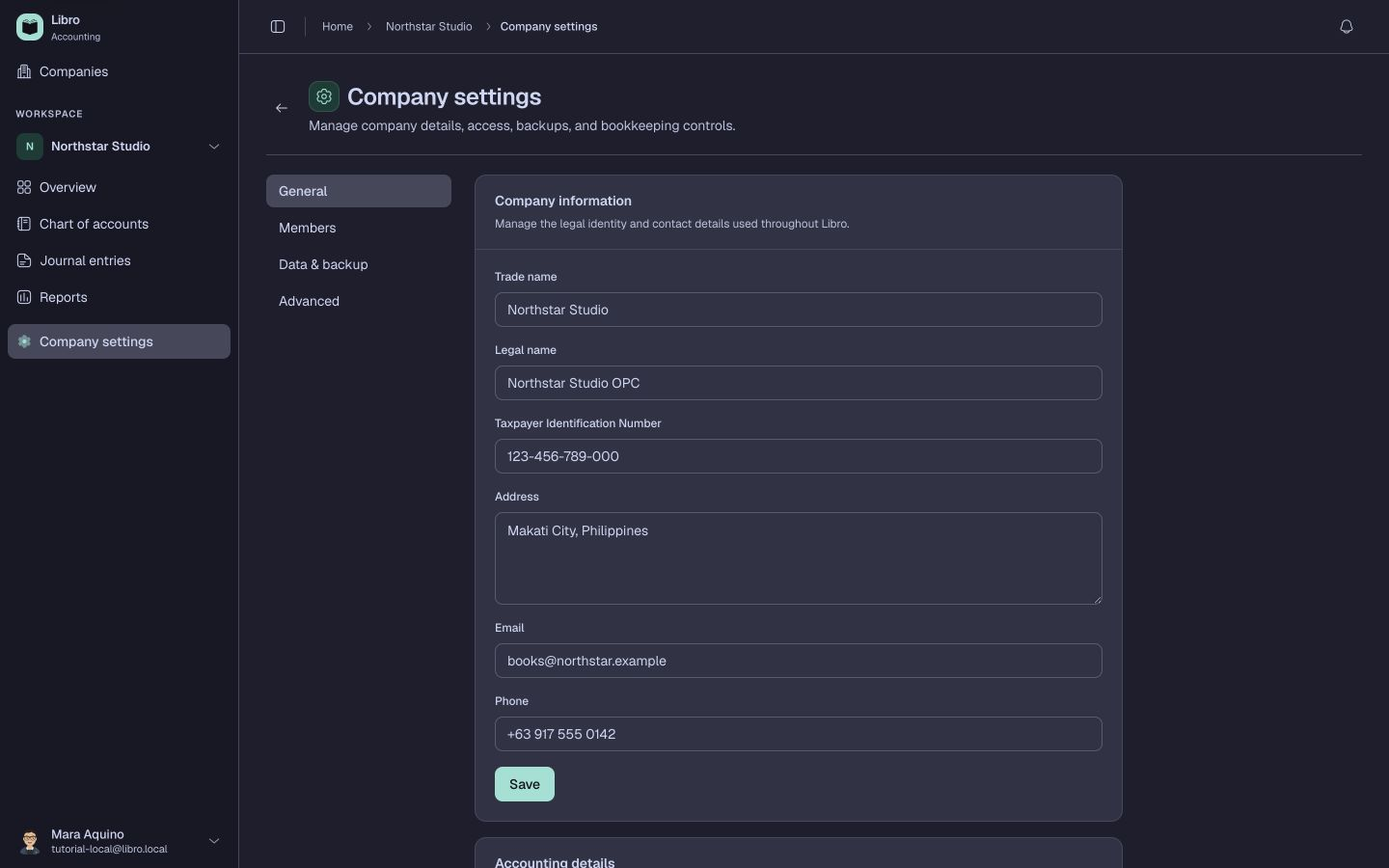
The Accounting details section controls the fiscal year end and reporting currency.
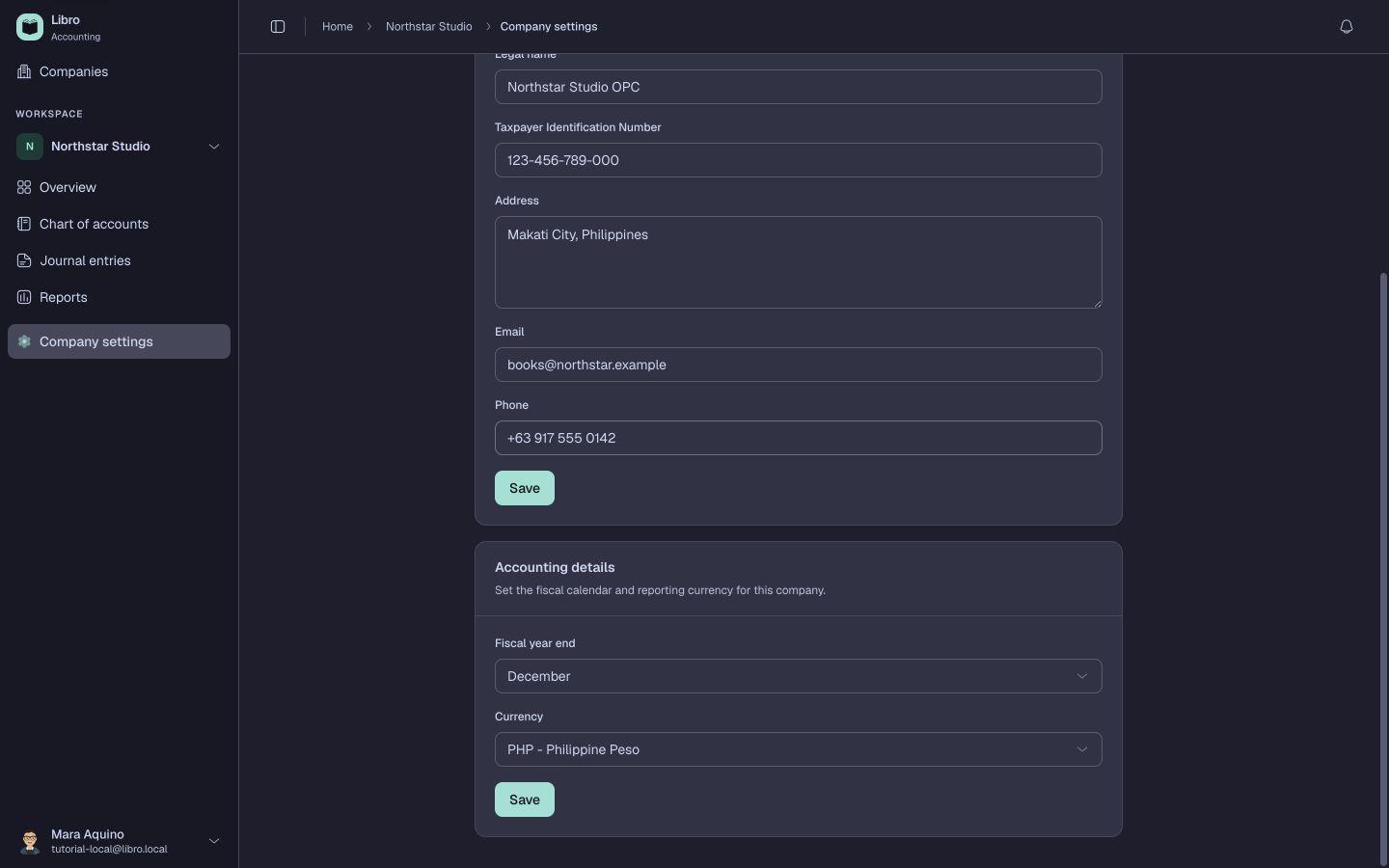
Changing the currency label does not convert amounts already recorded in the books.
Members
Members lists everyone with access to the company and their role.
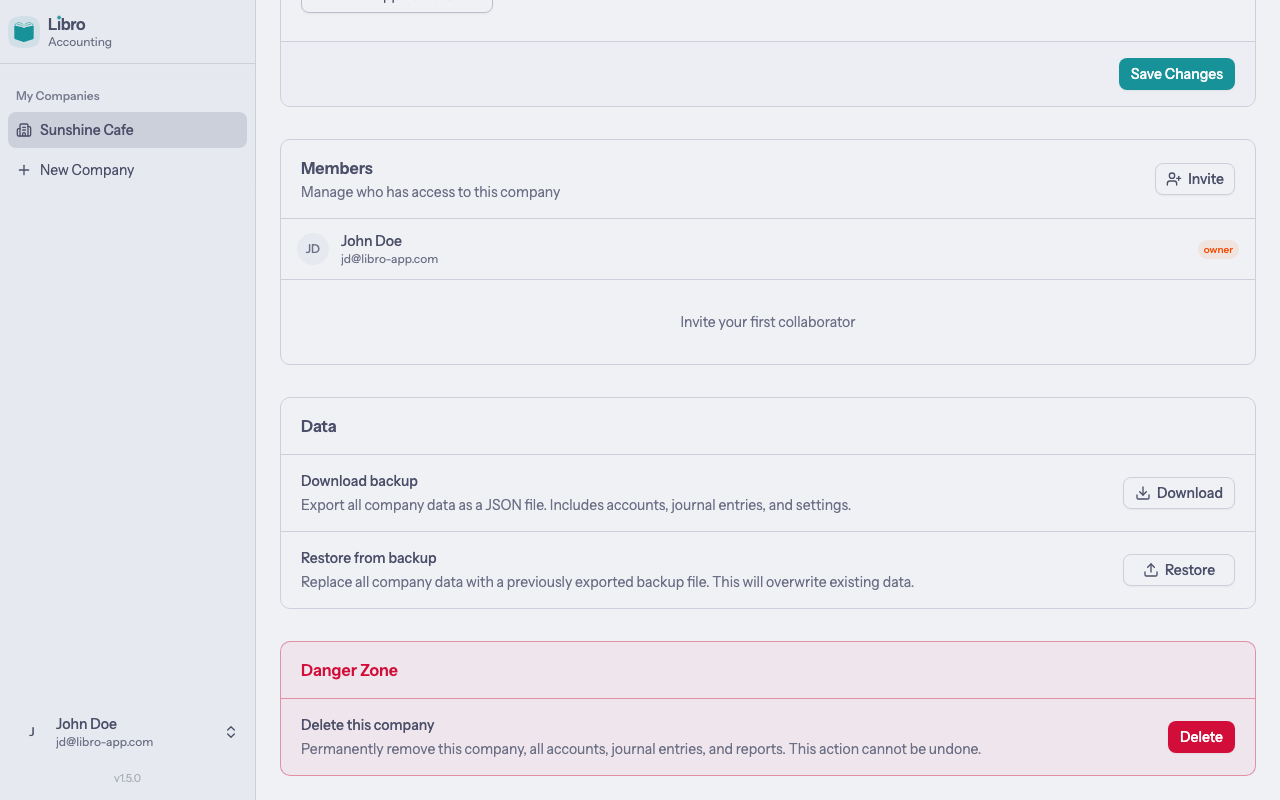
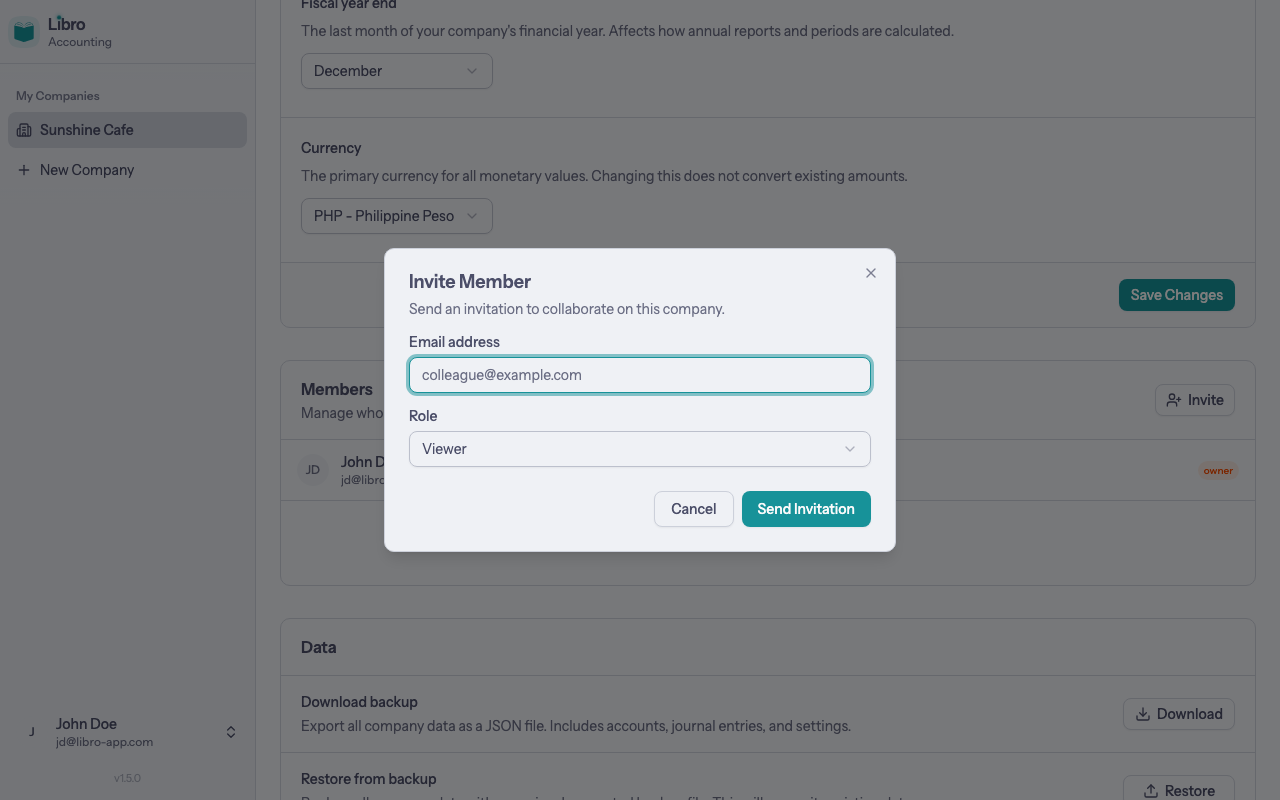
Choose Invite member, enter the person’s email, select a role, and send the invitation.
| Role | Access |
|---|---|
| Owner | Full company control, including destructive owner-only actions |
| Admin | Company administration and day-to-day accounting access |
| Editor | Create and update accounting records |
| Viewer | Read-only access |
Data & backup
Use Download backup to export company data as JSON. Restore from backup replaces the current company data with a selected backup and requires the company name as confirmation.
Keep backup files secure: they contain company and accounting data.
Advanced
Advanced contains irreversible company-level actions. A double-entry company can be deleted here; an eligible single-entry company also offers the one-way switch to double-entry bookkeeping.
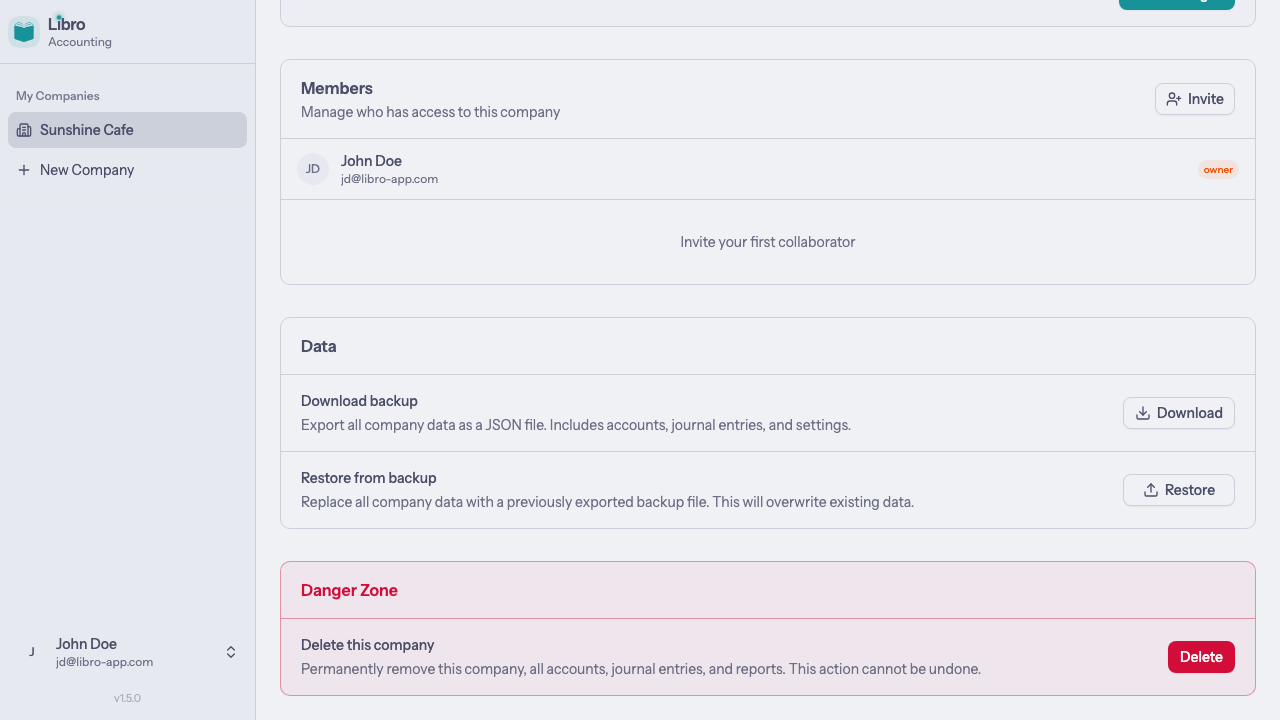
Read the confirmation carefully before continuing with any advanced action.
Personal settings
Open the menu under your name in the sidebar and choose Personal settings. Personal settings include General, Account, Notifications, and Billing.
General
Update your full name and choose whether Libro follows the system appearance or always uses light or dark mode.
Account
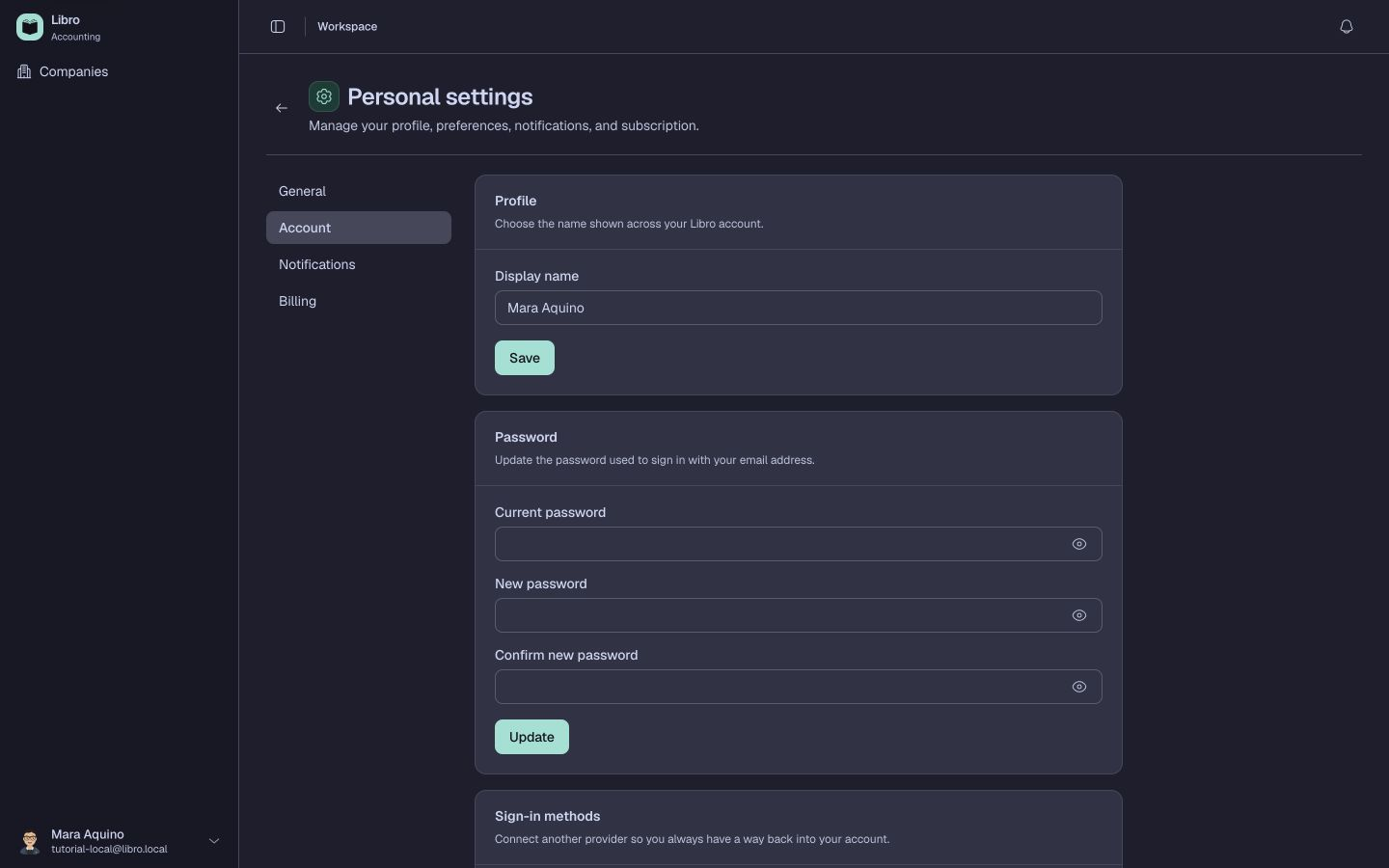
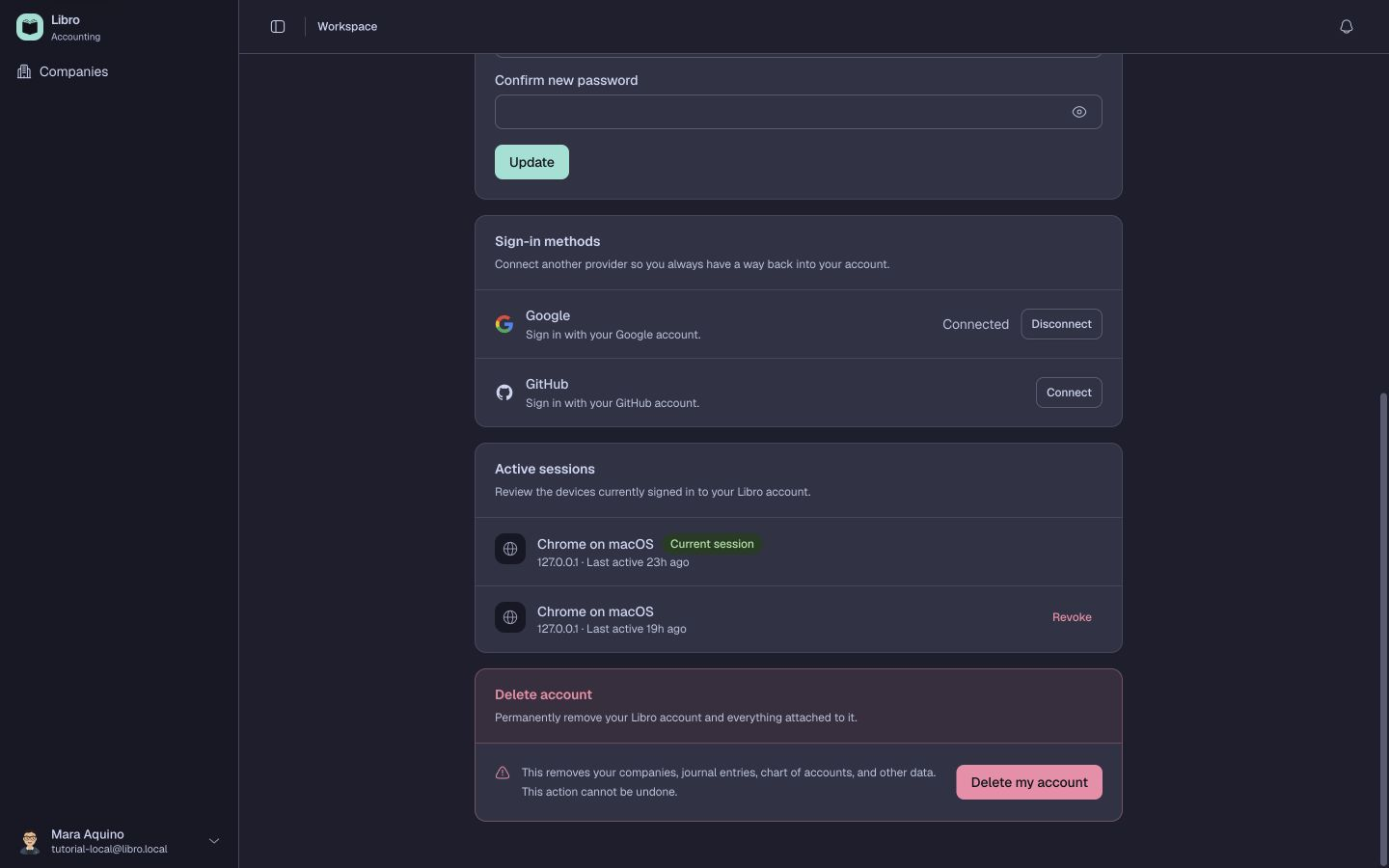
The Account section manages your display name, password, sign-in providers, active sessions, and account deletion.
Use Sign-in methods to connect Google or GitHub. Active sessions show where your account is signed in; revoke a session you no longer recognize or use.
Notifications
Choose whether Libro emails you about company invitations and member changes. These preferences save automatically.
Billing
Billing shows the current plan, company and collaborator limits, usage by company, and invoices.
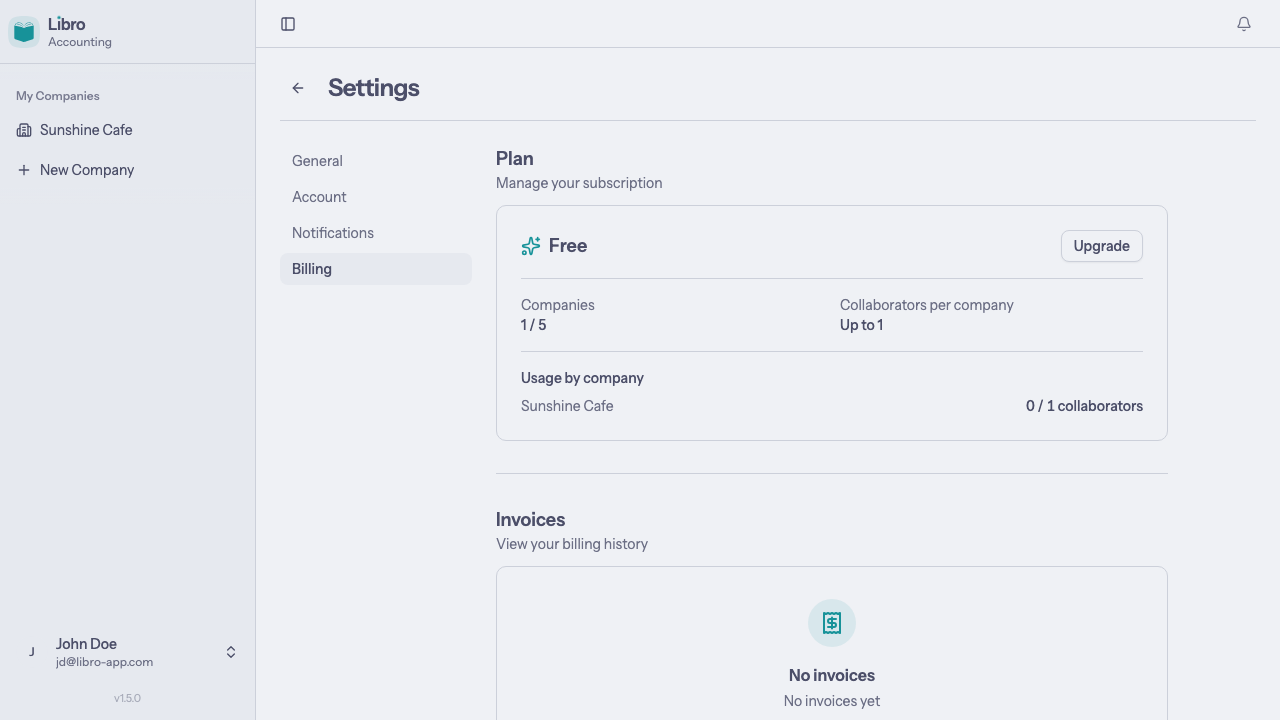
Choose Upgrade to review available paid plans.
Delete account
Deleting your personal account permanently removes the account and the companies and accounting data attached to it. Use this only after exporting anything you need to retain.