Getting Started with Libro
Set up your account, create your first company, and start recording transactions in under 10 minutes.
Getting Started with Libro
This guide takes you from a new Libro account to a working set of books and your first financial report.
1. Create your account
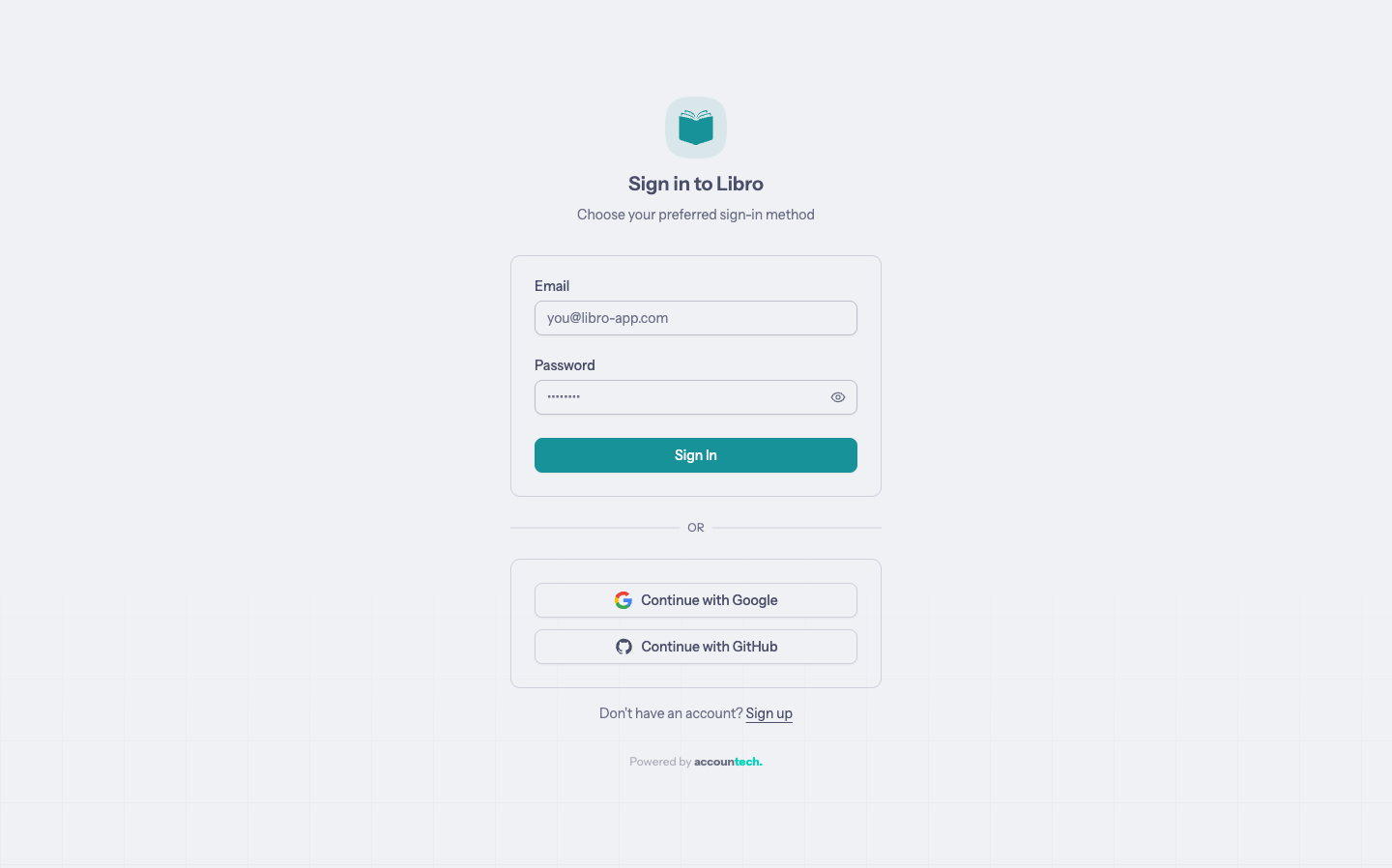
Open Libro and choose Sign up. Enter your name, email, and password, or use one of the available sign-in providers.
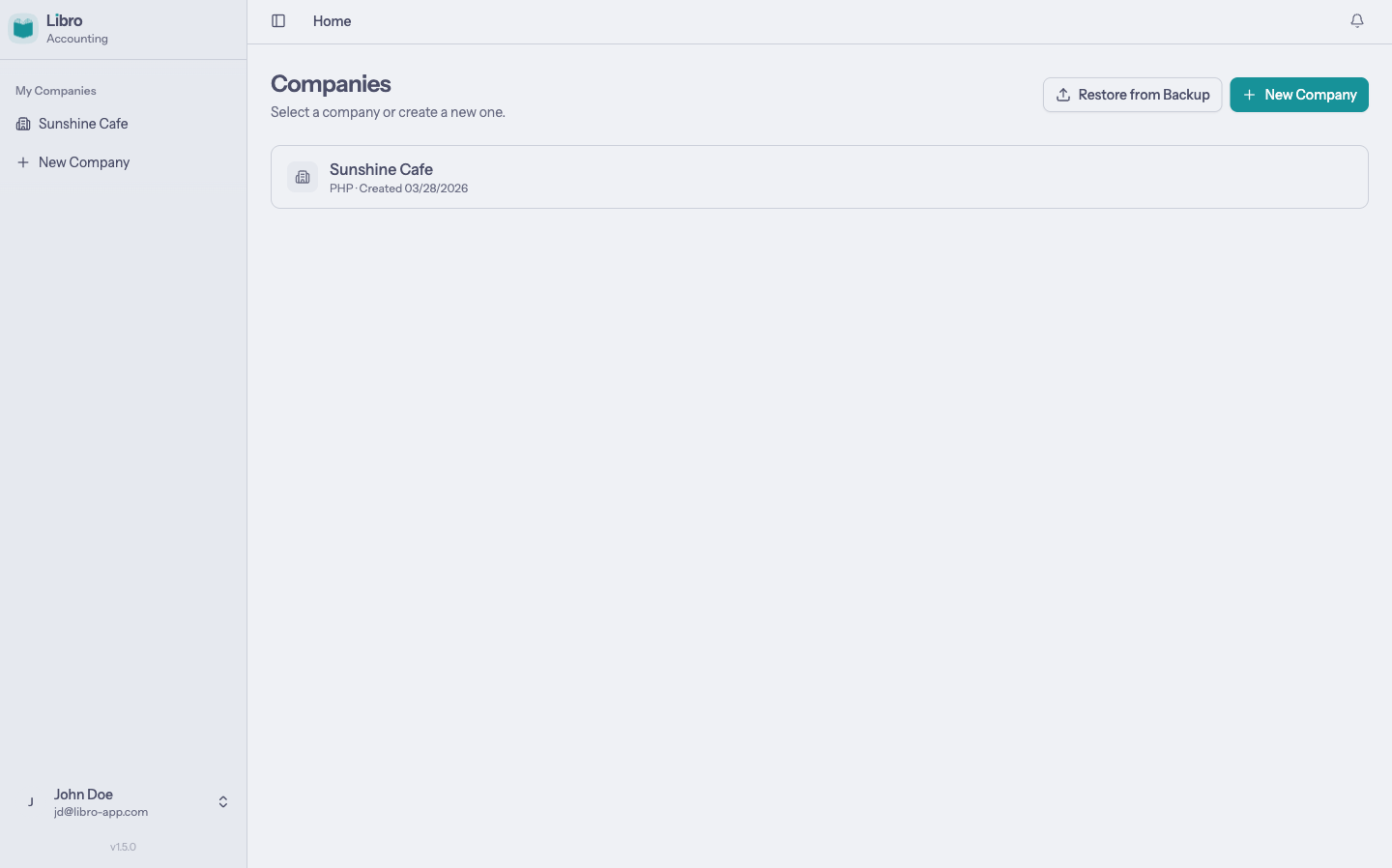
After signing in, the company directory groups workspaces you own under My companies and invited workspaces under Shared with me. Choose New company to set up your first workspace.
2. Create a company
The setup flow adapts the chart of accounts to your business.
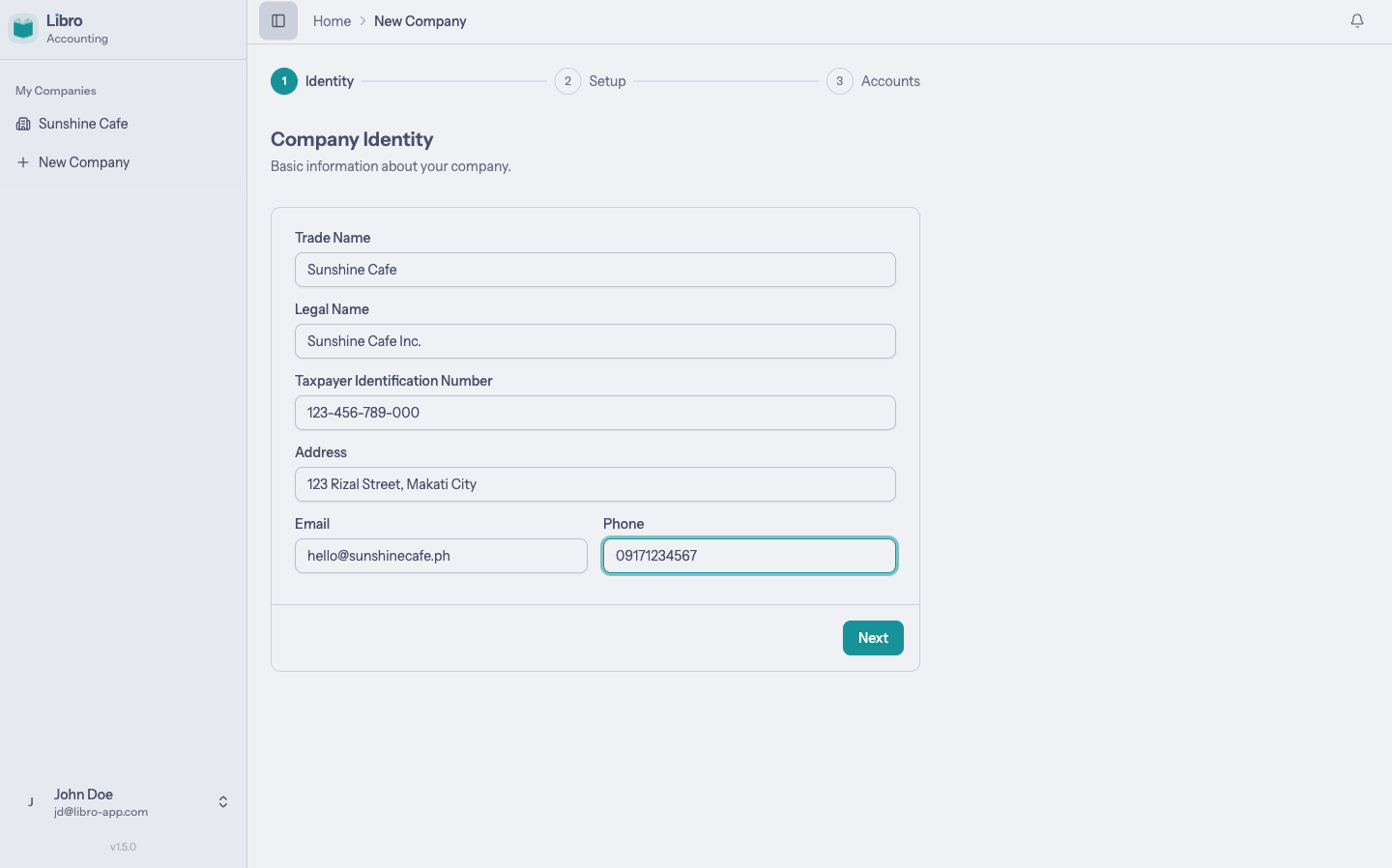
Identity
Enter the trade name shown in Libro and the registered legal name. TIN, address, email, and phone are optional and can be updated later.
Setup
Choose the legal structure, business type, bookkeeping method, fiscal year end, and currency. Quick Setup applies the common sole-proprietor, service, double-entry configuration.
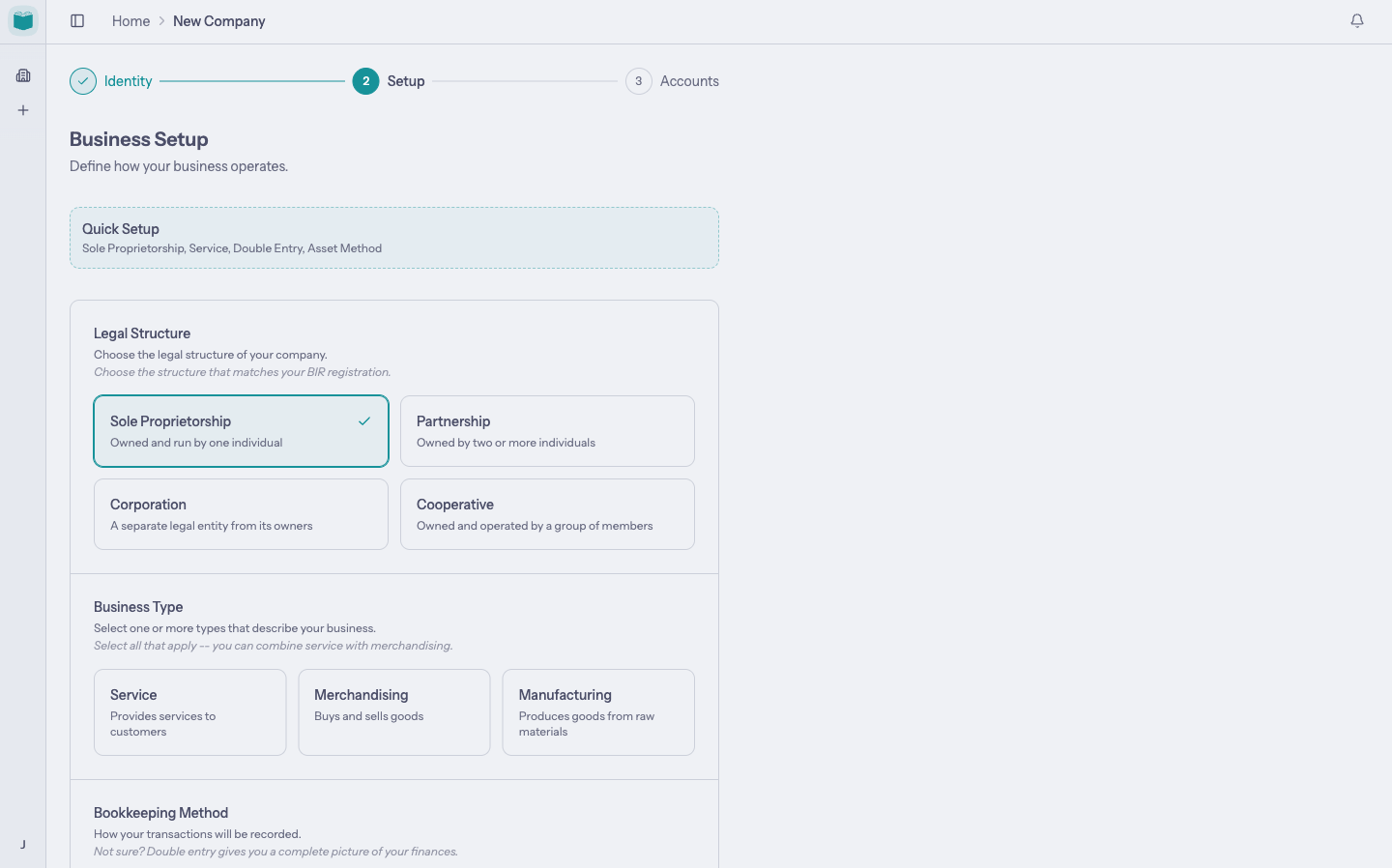
- Single entry records each cash transaction once as income or expense.
- Double entry records balanced debits and credits and provides the complete accounting workflow.
- Double-entry companies can also choose how prepaid costs are initially recorded.
Accounts
For double-entry companies, select the optional account groups your business needs. Libro previews and creates the resulting accounts automatically.
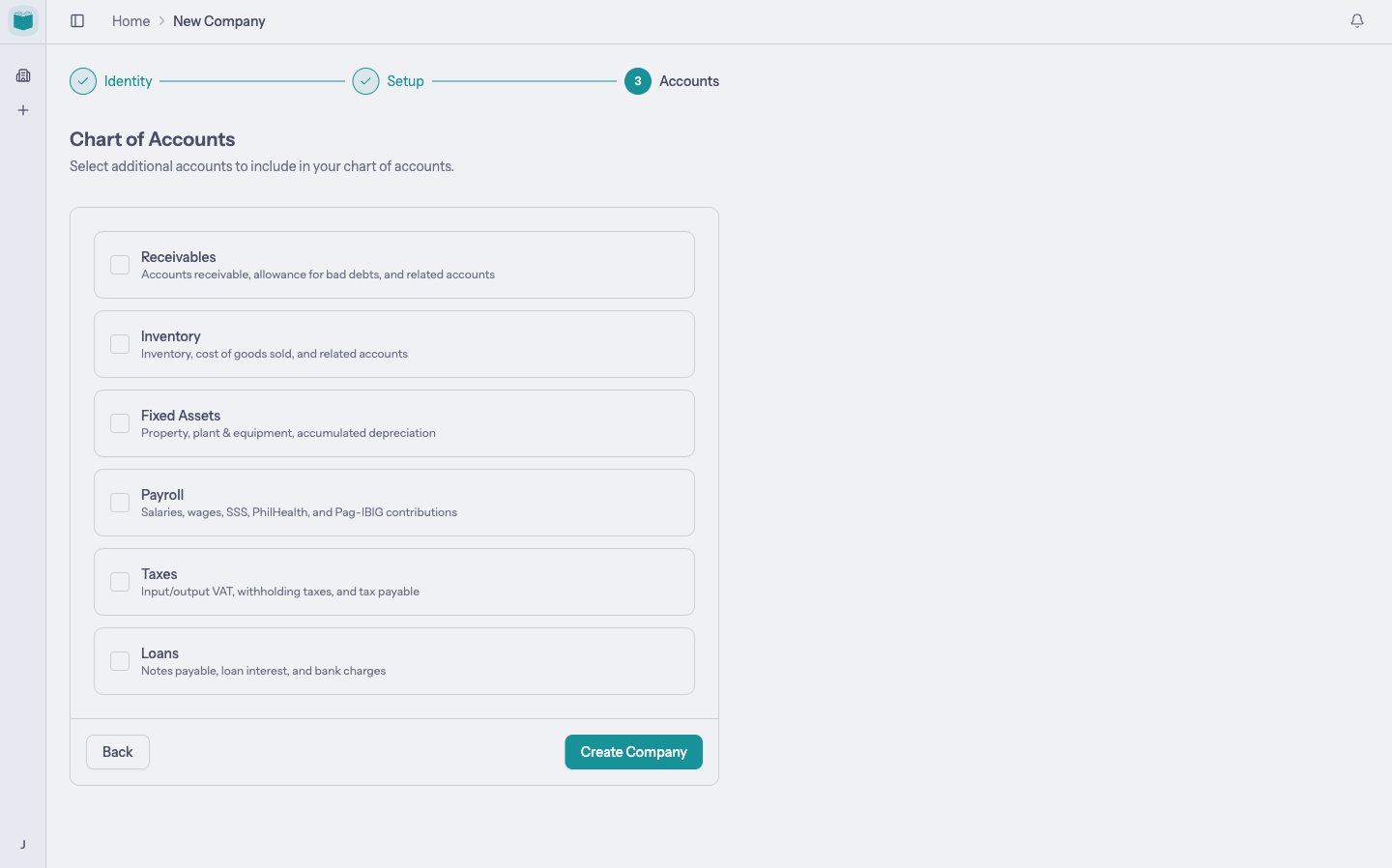
Choose Create company to open the new workspace.
3. Find your way around
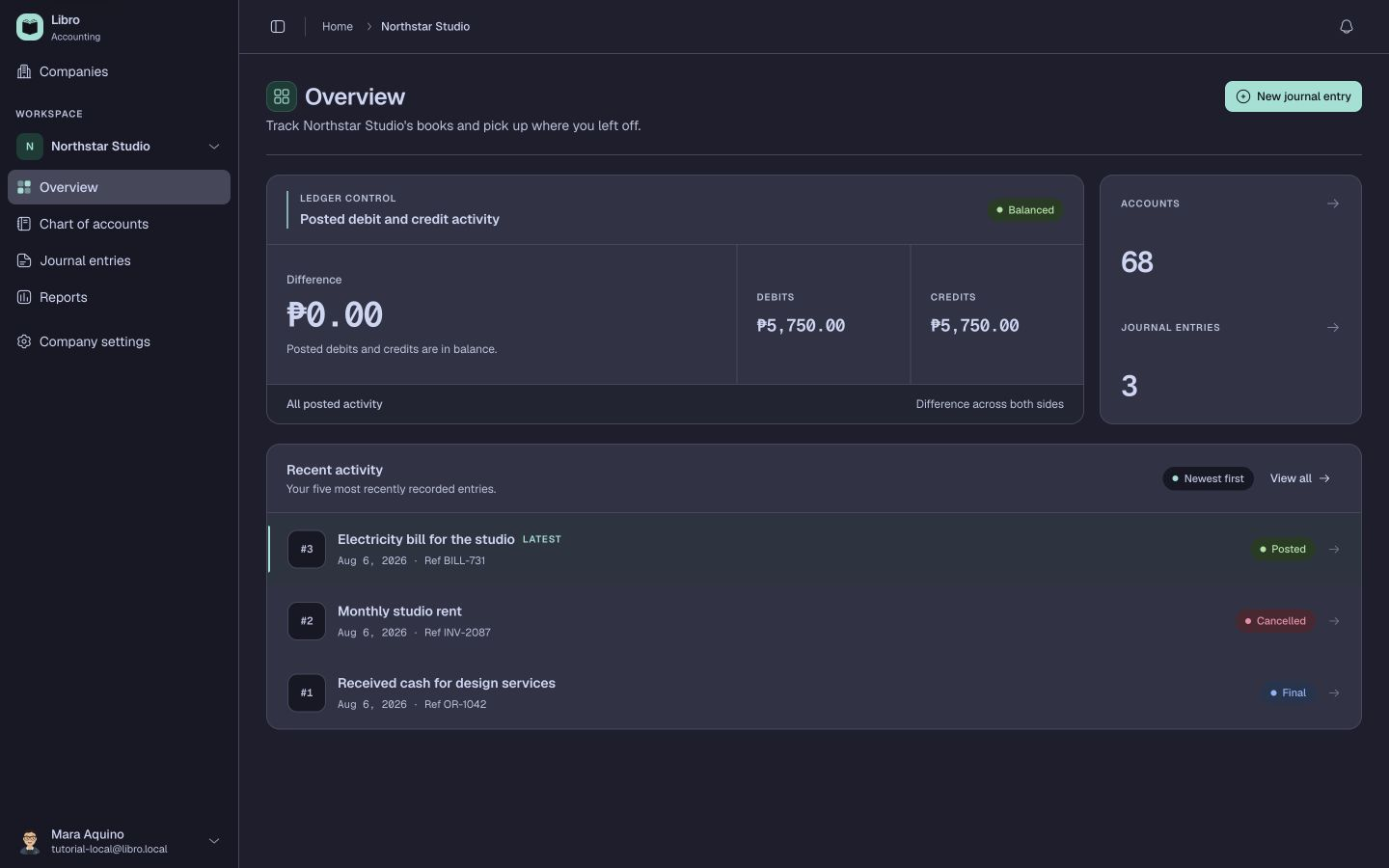
Companies is always available near the top of the sidebar and returns you to the company directory. Inside an active workspace, the Workspace section begins with a compact workspace switcher. Open the workspace switcher to move between your own and shared companies or create another company.
Libro opens a company on Overview. For double-entry books, the balance card compares posted debits and credits and highlights any difference. For single-entry books, it shows net cash movement alongside cash in and cash out.
The Recent activity panel lists the five newest recorded entries first. This ordering reflects when entries were added to Libro, while each row still shows its accounting date and reference.
4. Review the chart of accounts
Choose Chart of accounts in the workspace sidebar. Accounts are grouped by type and display their code, name, description, and status.
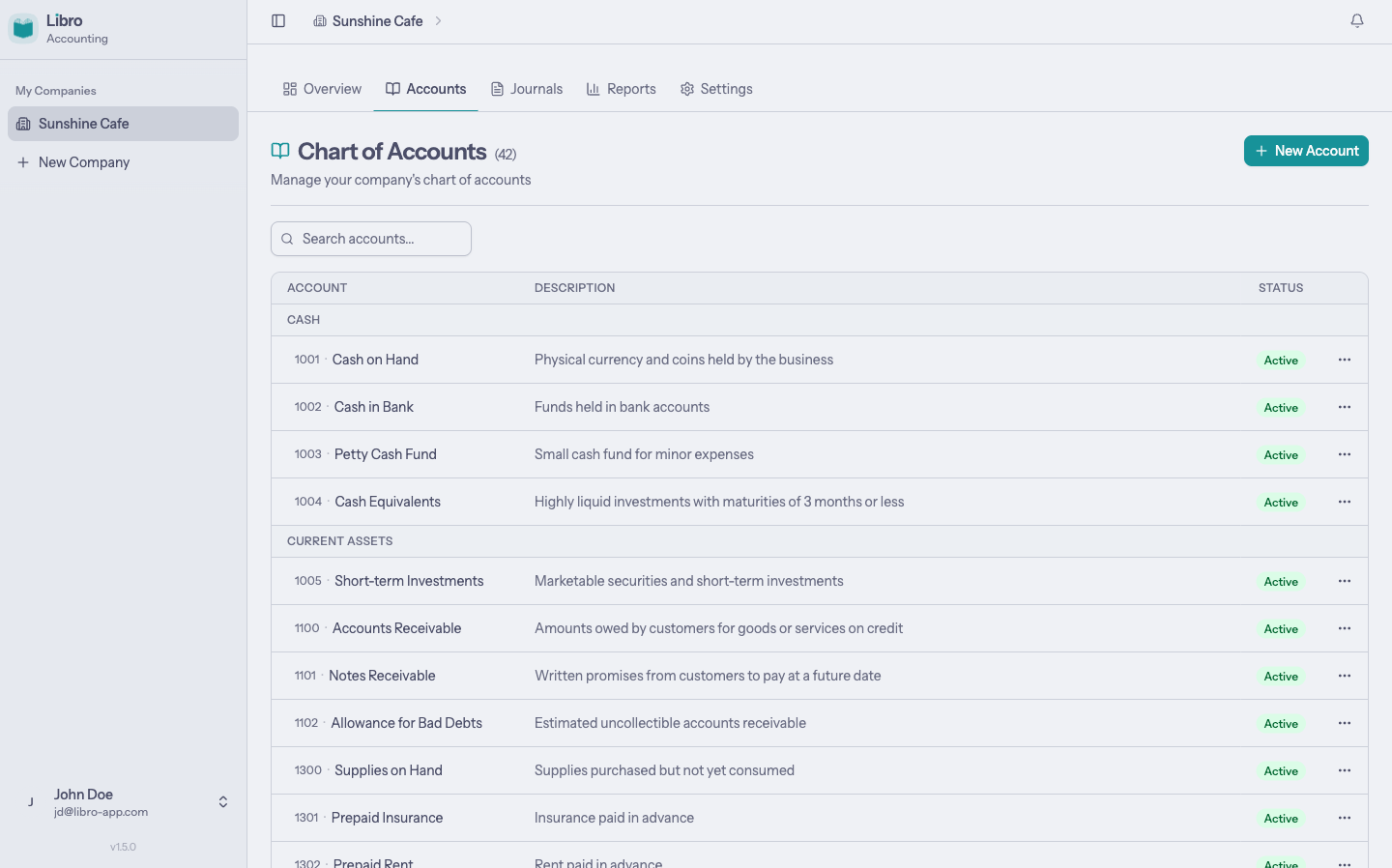
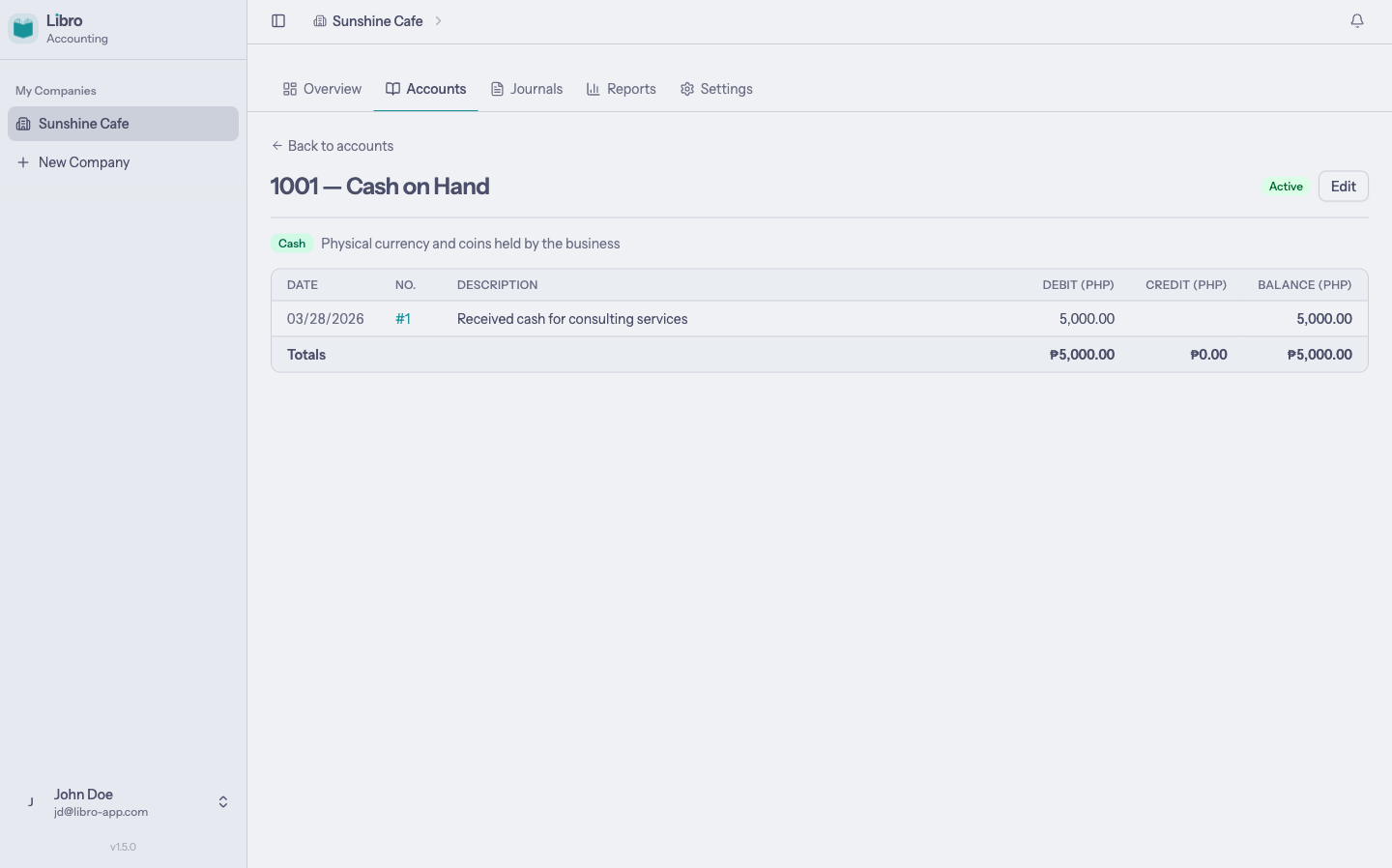
Use New account for a custom ledger account. Open any account to see its details and posted activity.
5. Record a journal entry
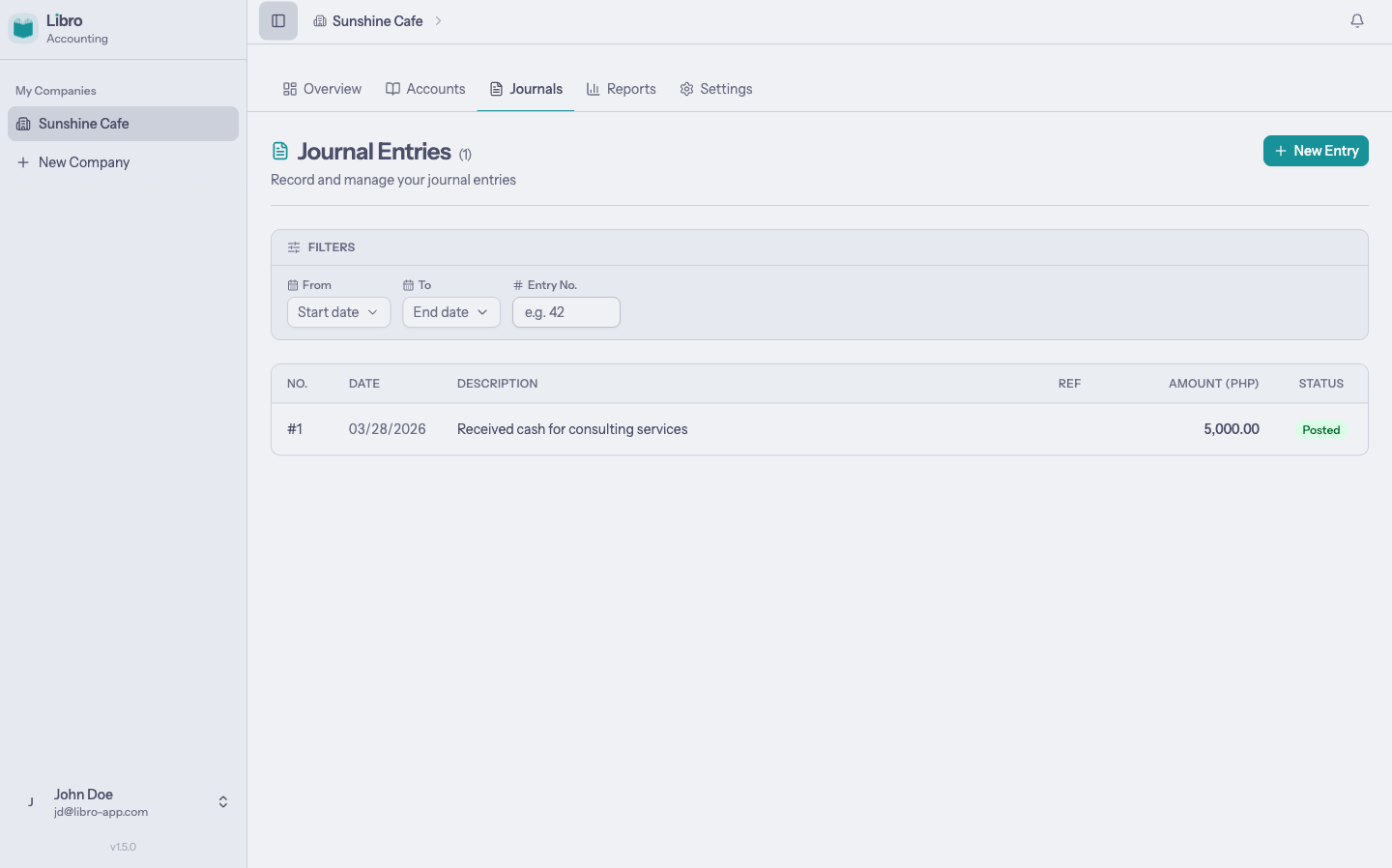
Double-entry companies show Journal entries in the sidebar. Open it and choose New entry.
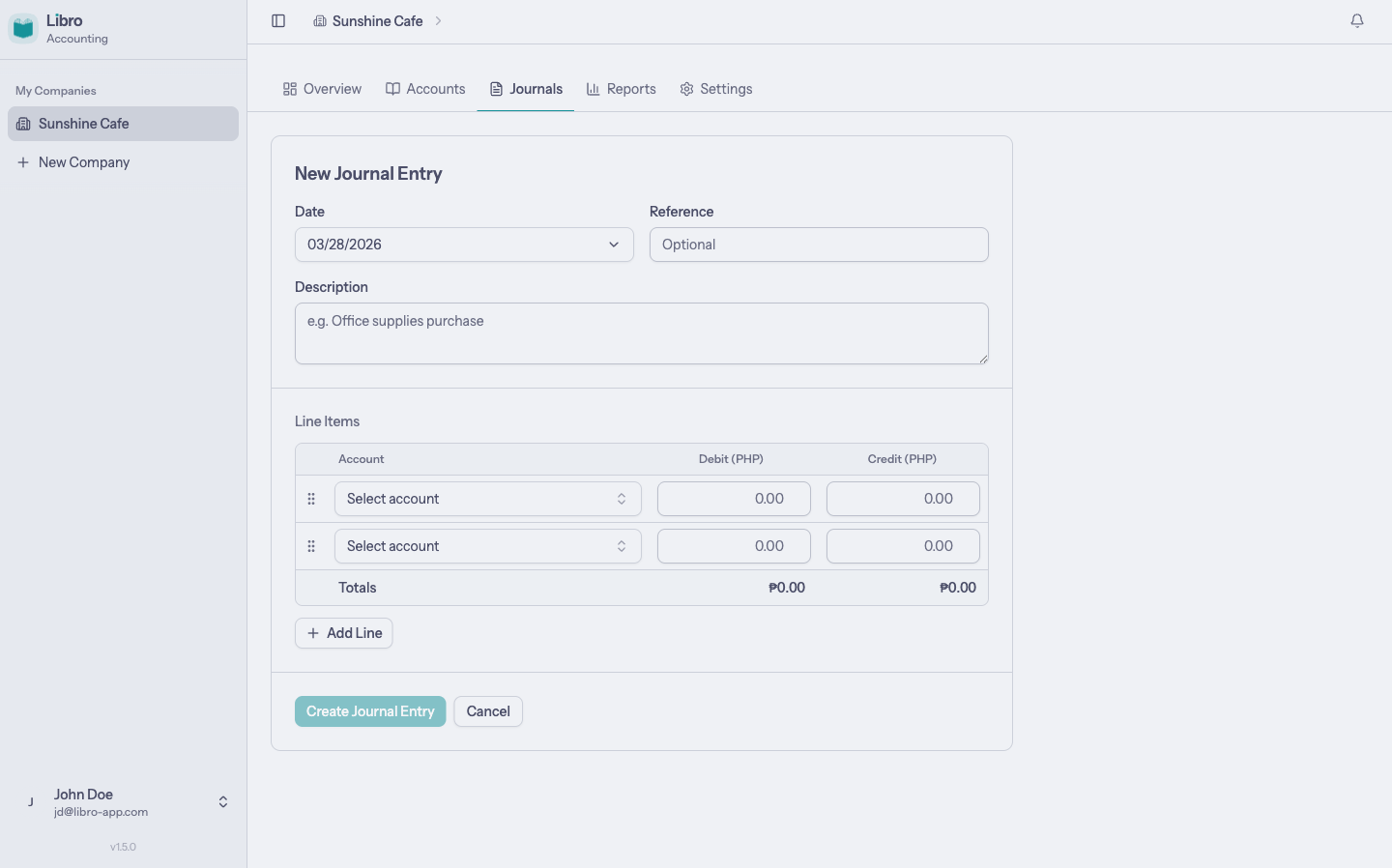
Add the accounting date, an optional reference, a clear description, and at least two account lines.
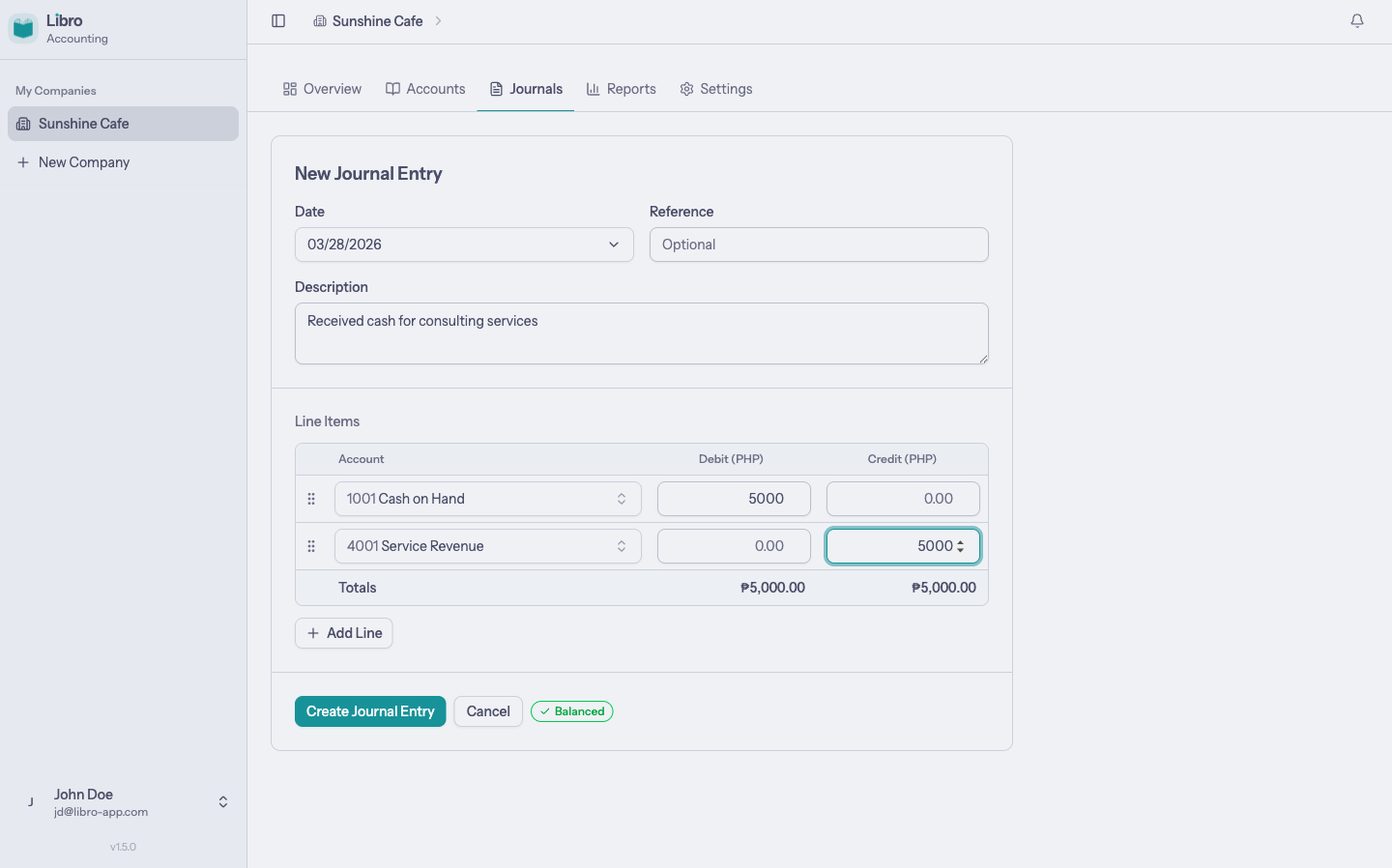
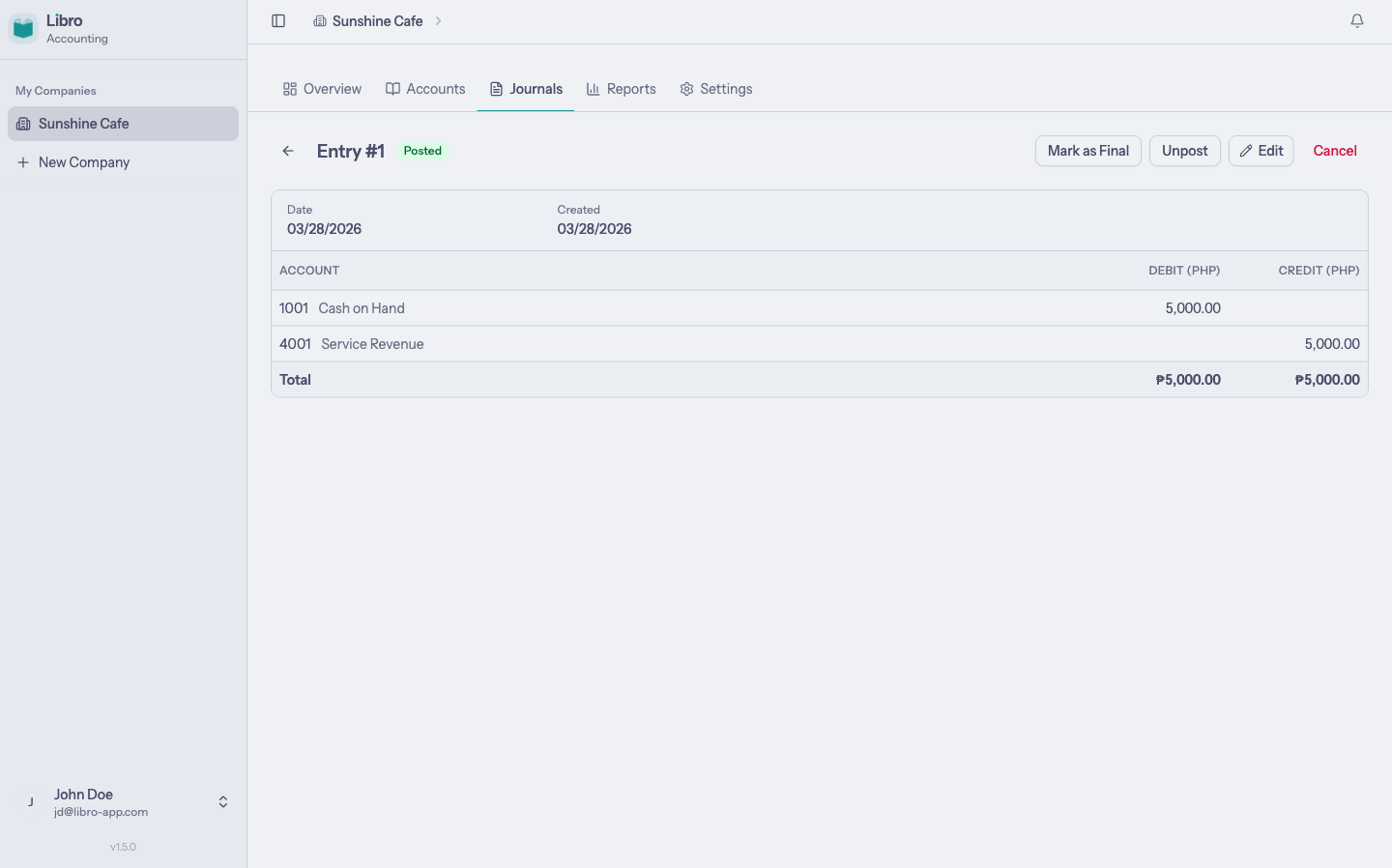
For example, receiving PHP 5,000 for services is recorded as:
| Account | Debit | Credit |
|---|---|---|
| Cash on Hand | 5,000 | — |
| Service Revenue | — | 5,000 |
Libro shows live totals and marks the entry ready when debits and credits balance.
New entries begin as Draft. Posted entries affect ledgers and reports, Final entries are locked, and Cancelled entries are excluded from balances.
Single-entry companies use the same sidebar location under the label Transactions. Their form asks for cash in or cash out, a cash account, and one or more allocations.
6. Review reports
Choose Reports in the sidebar to open the reports hub.
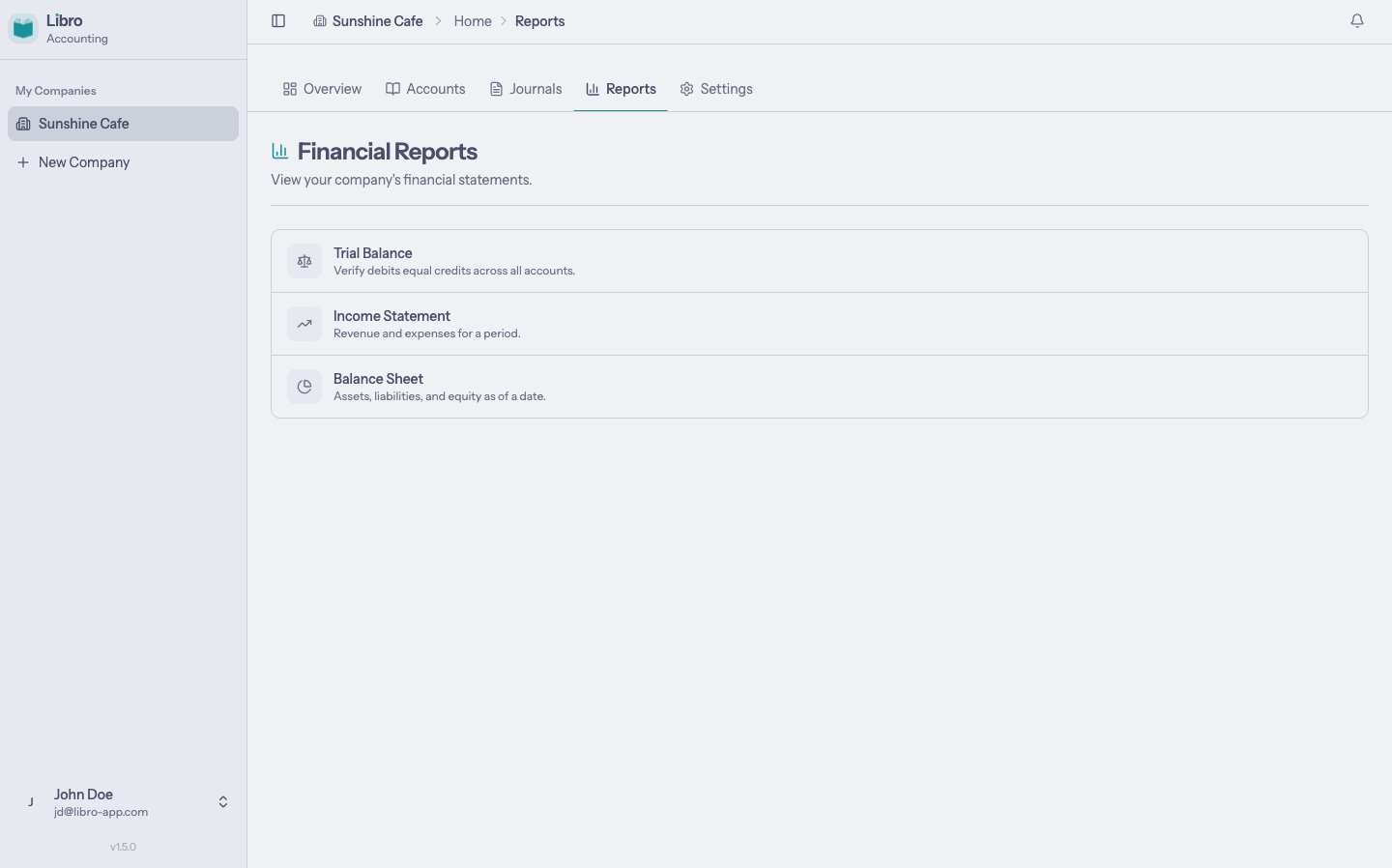
Double-entry companies can review the Trial Balance, Income Statement, Balance Sheet, and Cash Receipts & Disbursements report. Only posted and final activity is included.
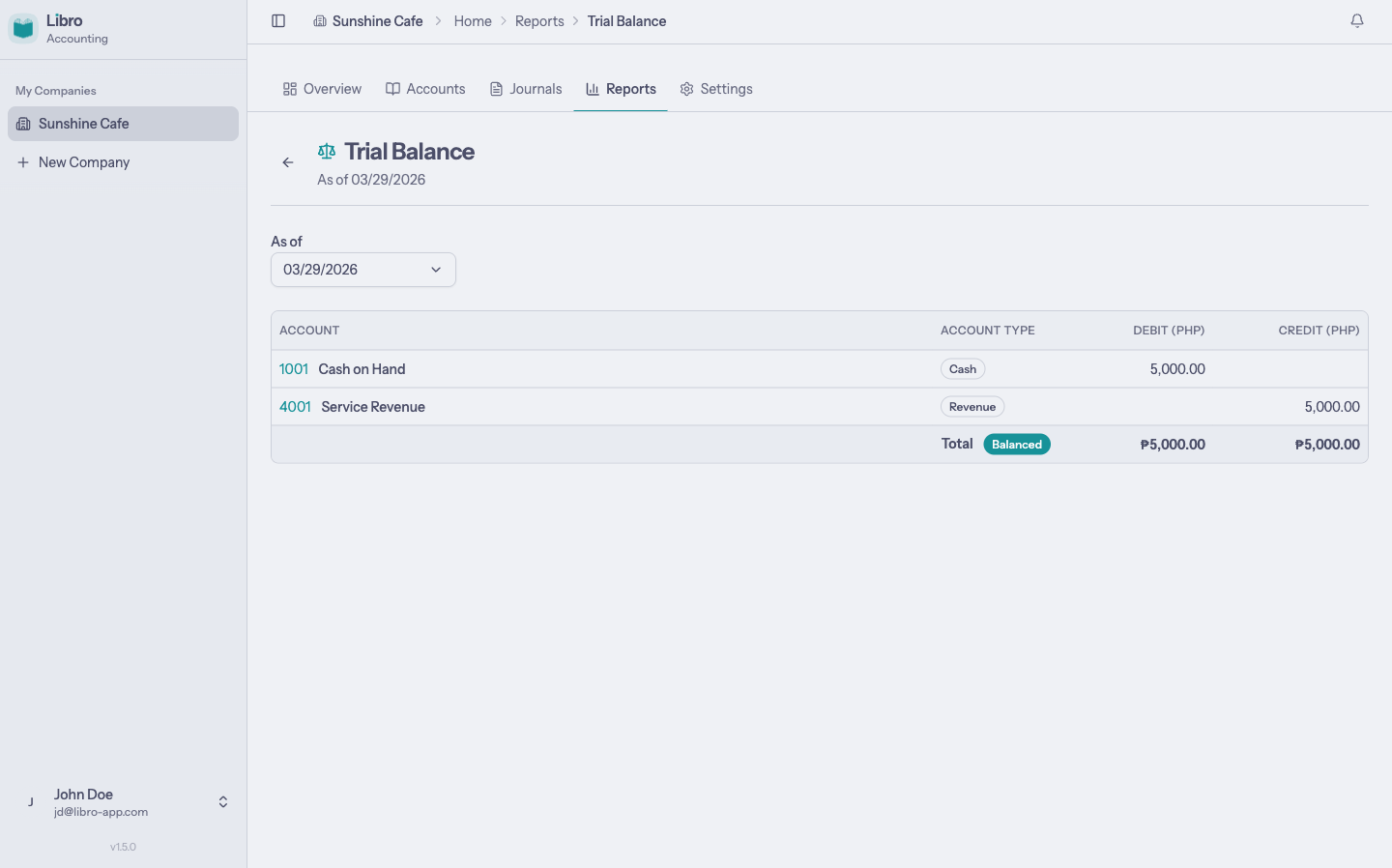
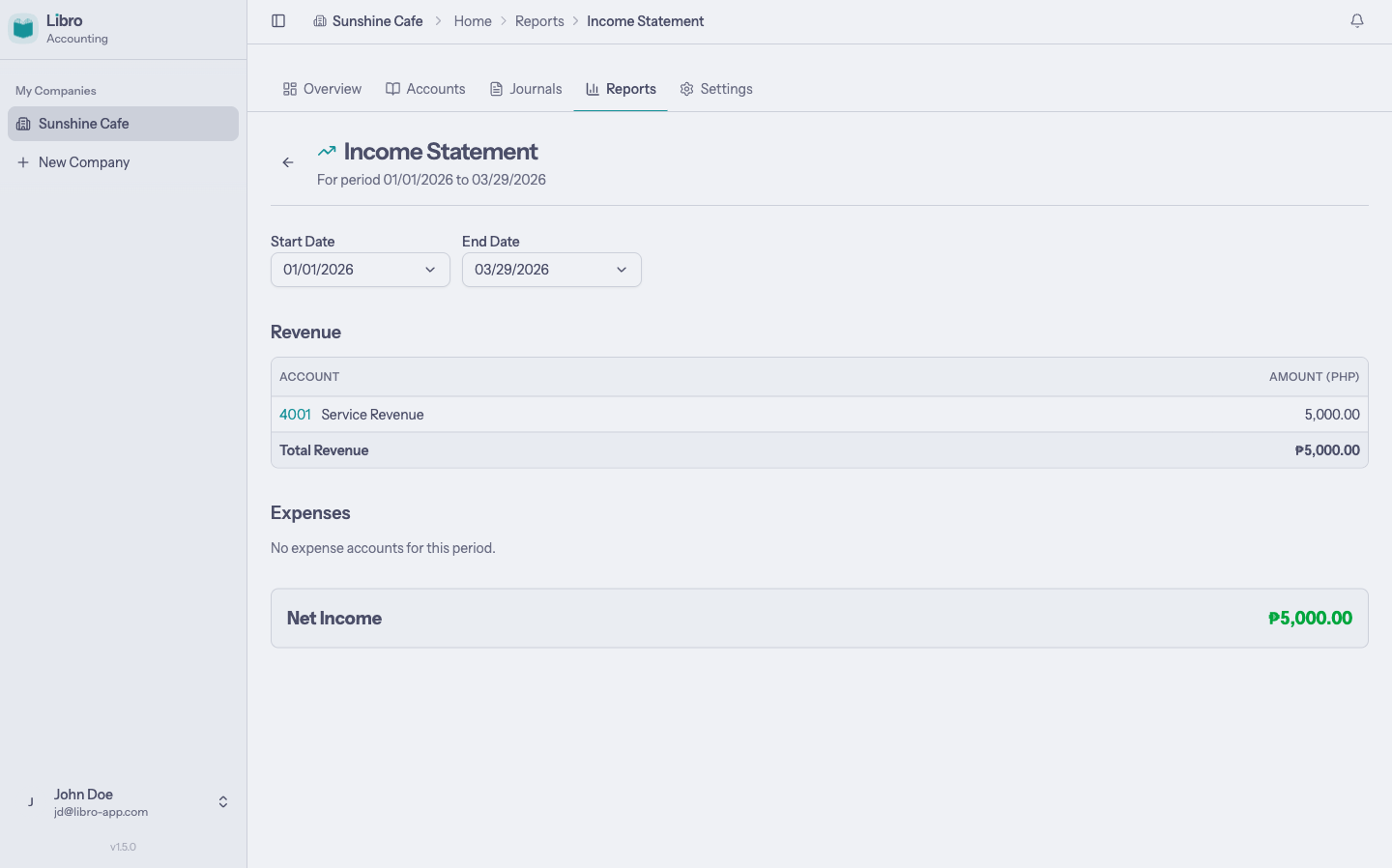
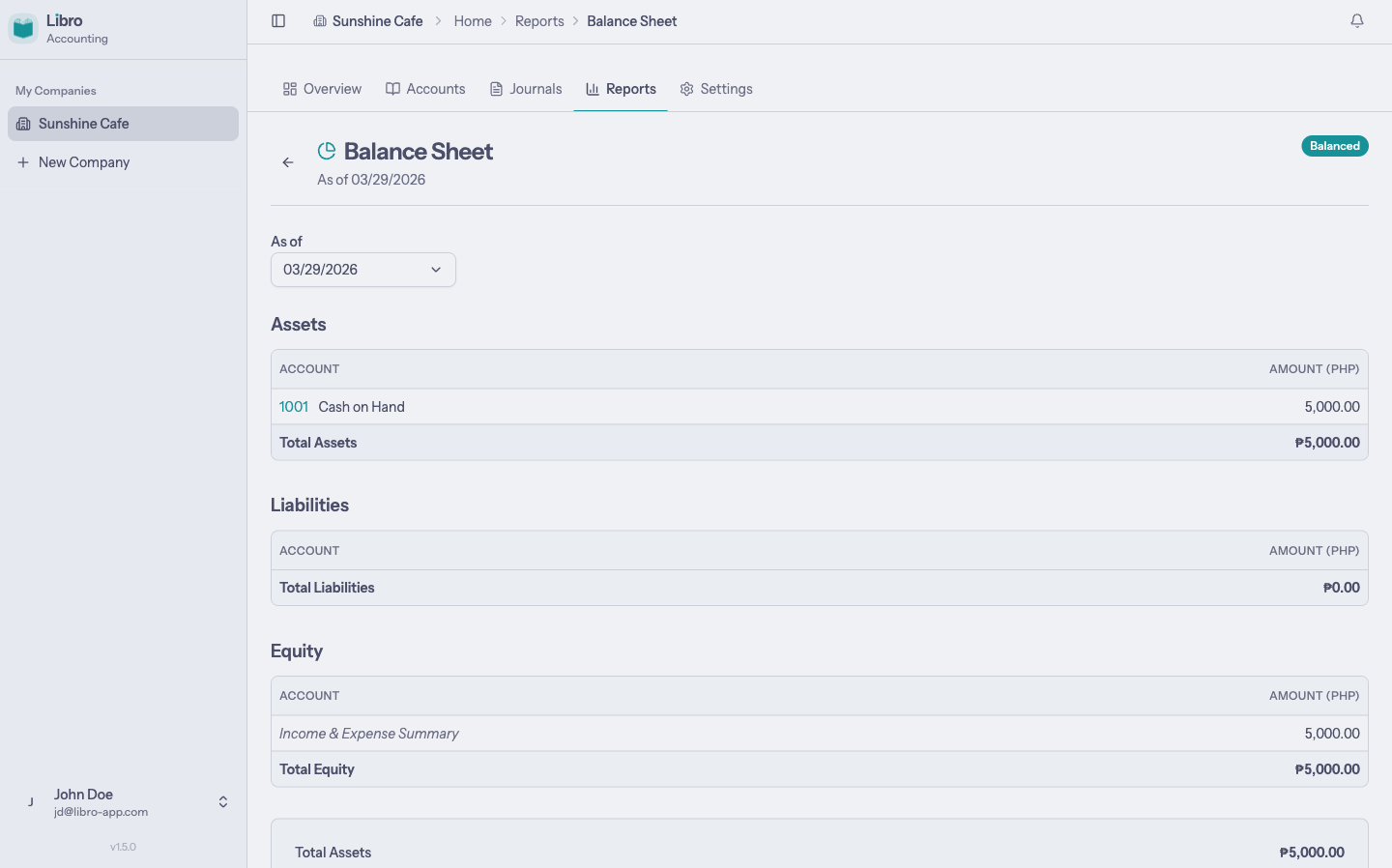
Use each report’s date or period controls to review a different reporting cutoff.
7. Finish your settings
Choose Company settings in the workspace sidebar to edit company information and accounting details.
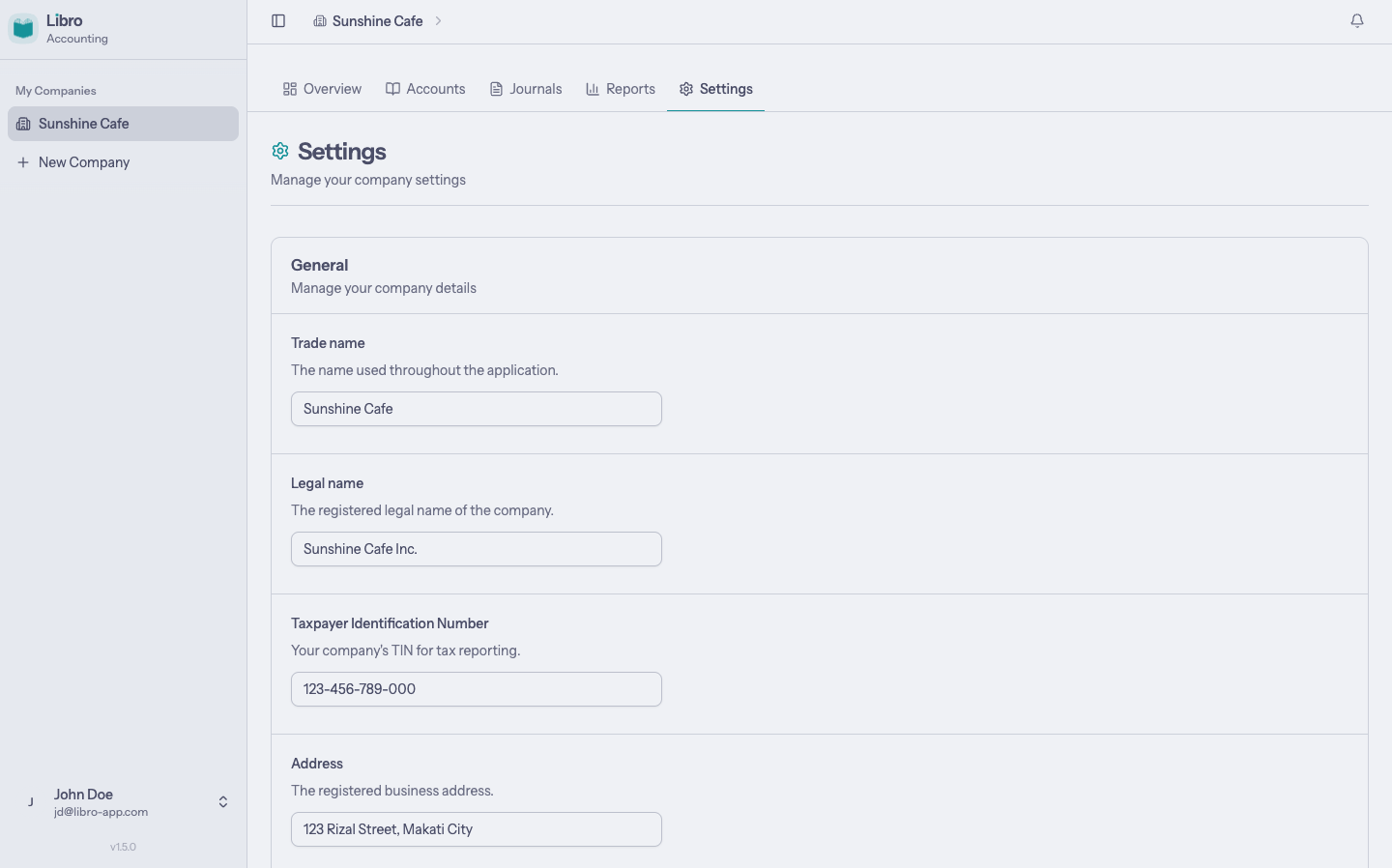
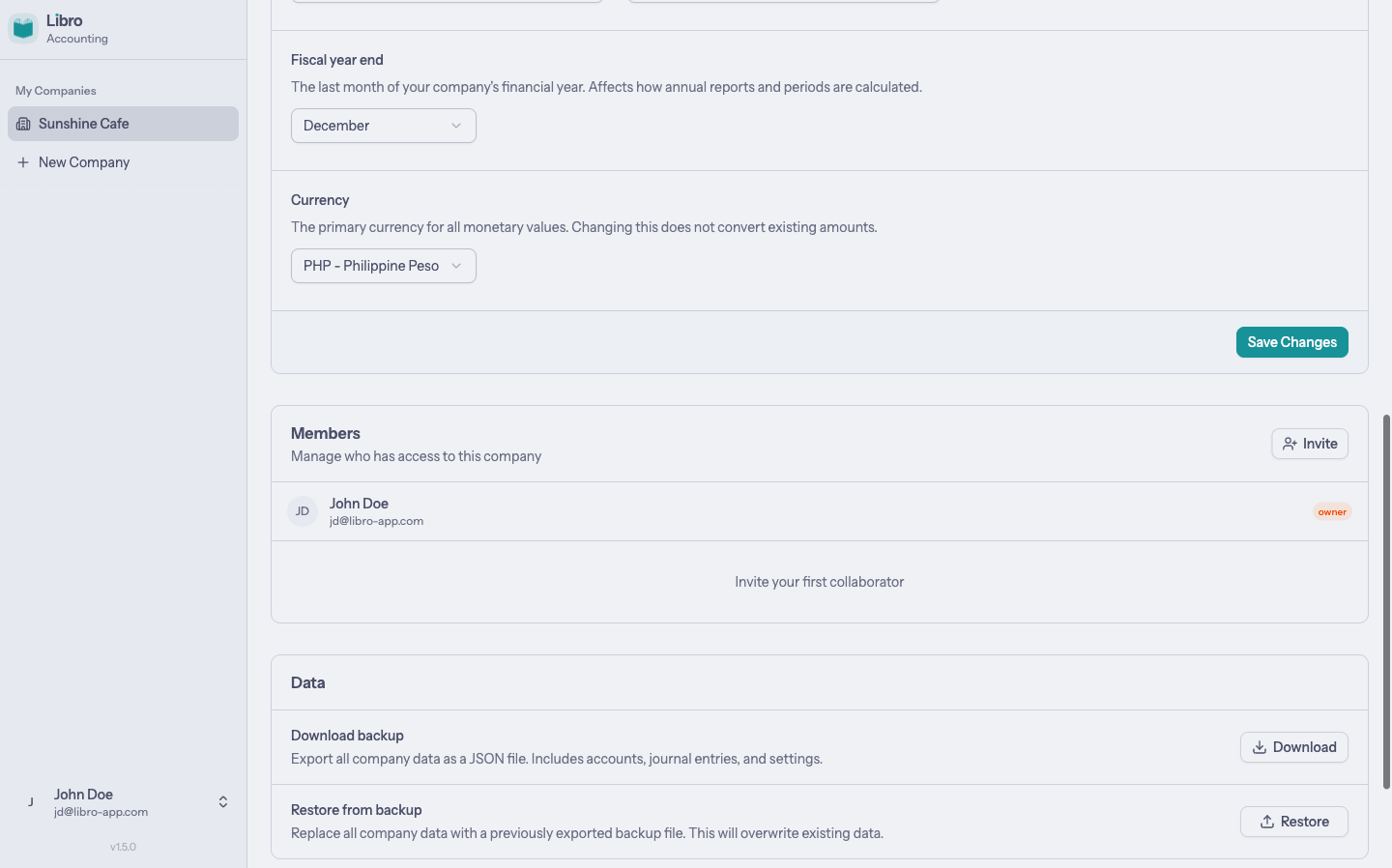
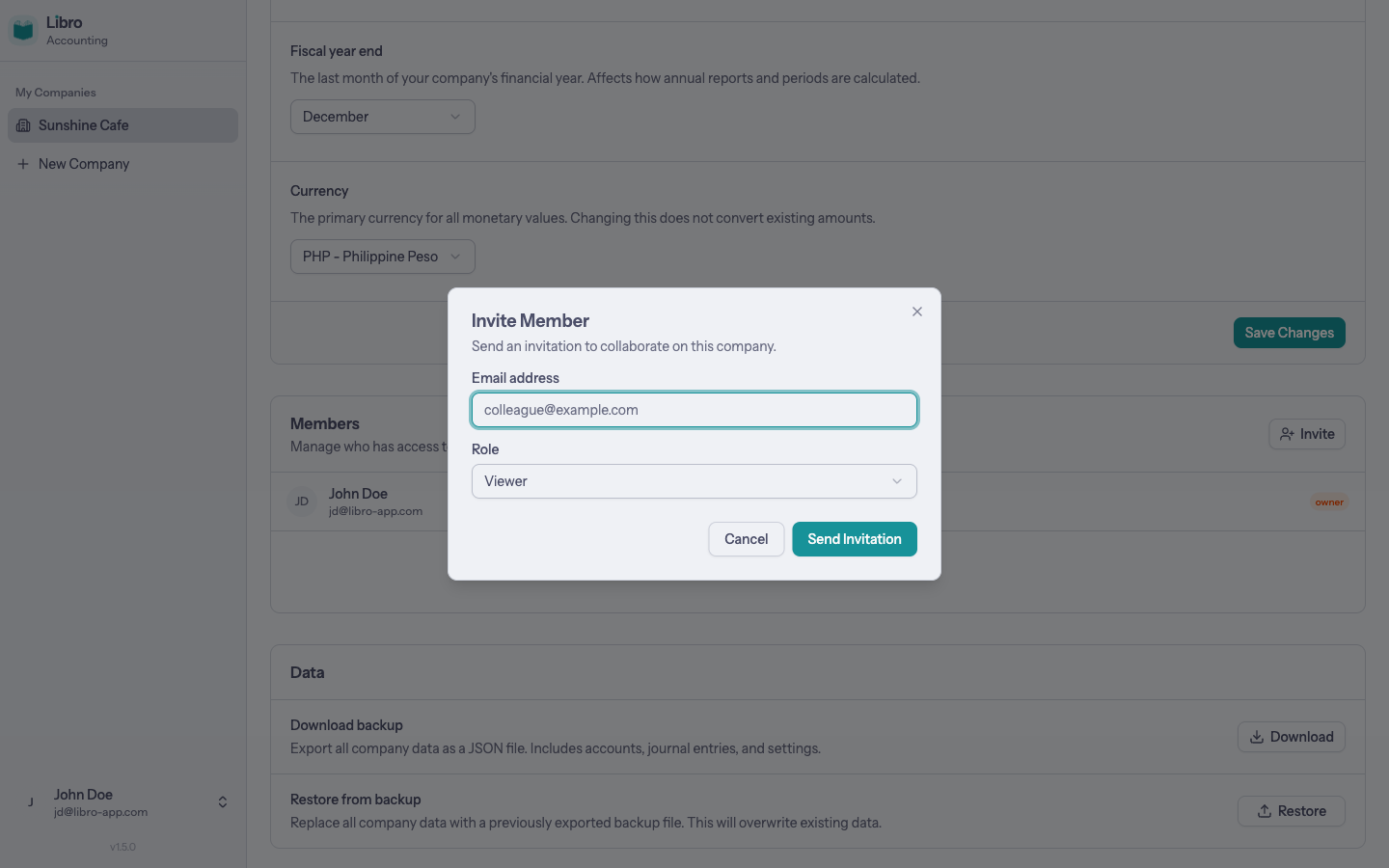
Open Members to invite a bookkeeper or teammate and assign their access level.
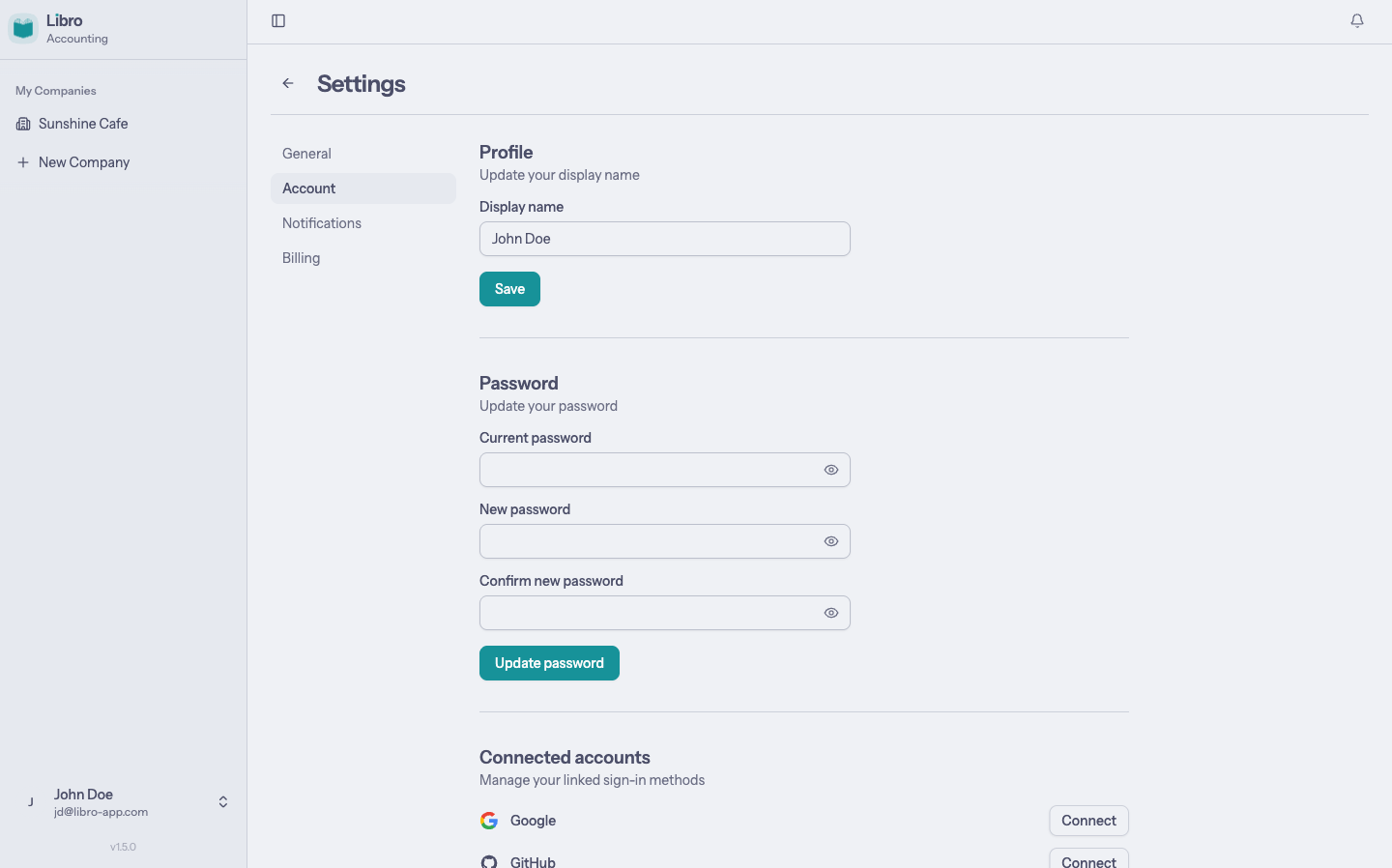
Personal profile, security, notification, appearance, and billing preferences live under your name in the sidebar.