Manage Libro · 8 min
HotManage connected AI apps
Connect ChatGPT or Claude to Libro with remote MCP, verify permissions, and revoke access.
Installation
Connect your AI client
Choose your client, follow the numbered steps, and complete Libro's OAuth approval in your browser.
- Open ChatGPT, open Settings → Plugins → Developer mode, and enable Developer mode.
- Go to Plugins → +. This opens New Plugin.
- Enter these plugin details. The icon and advanced OAuth settings are optional.
- Name
- Libro
- Description
- Libro app MCP
- Connection
- Server URL
- Server URL
https://account.libro-app.com/api/mcp- Authentication
- OAuth
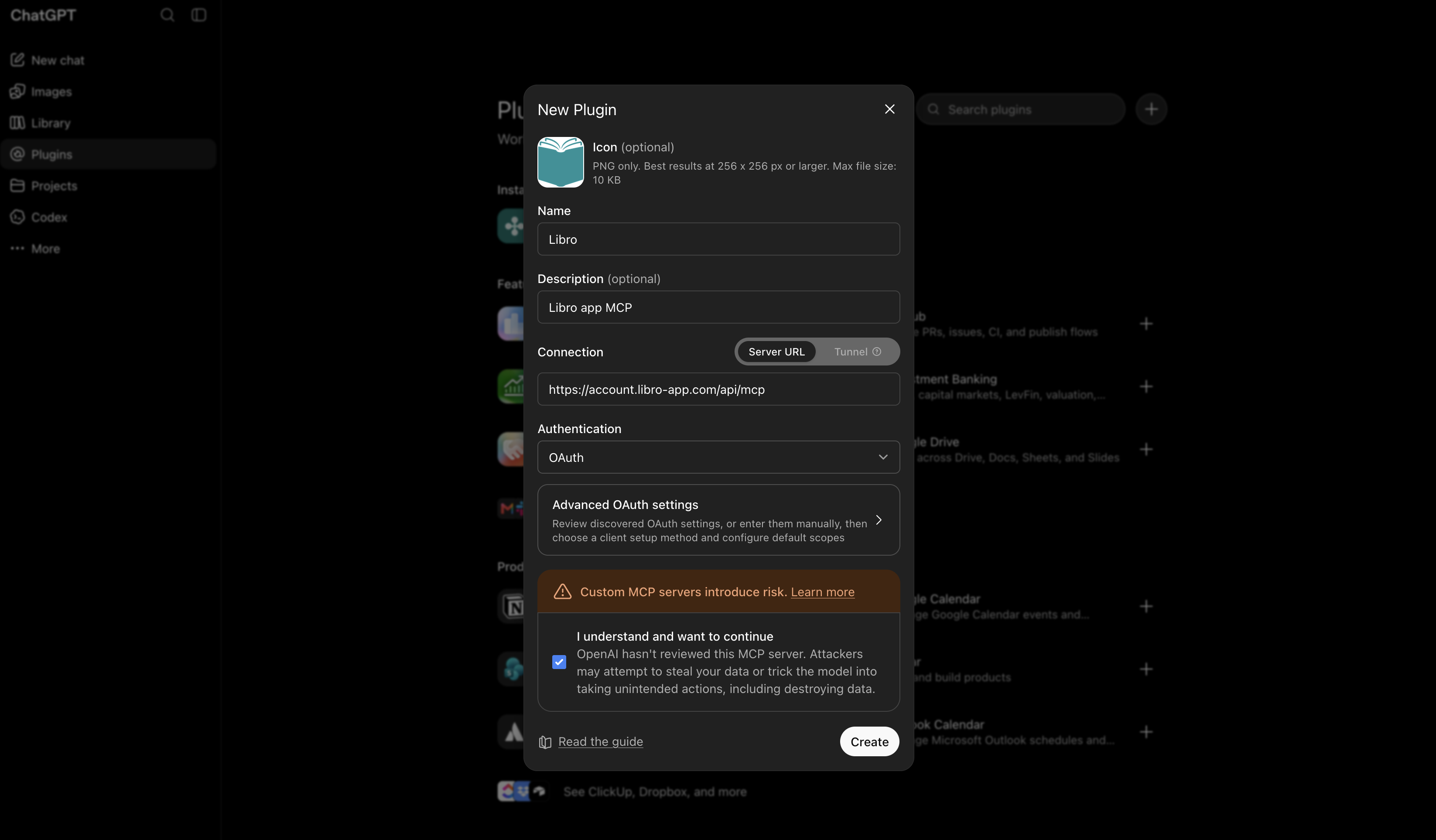
- Review the custom MCP server warning, select I understand and want to continue, then choose Create.
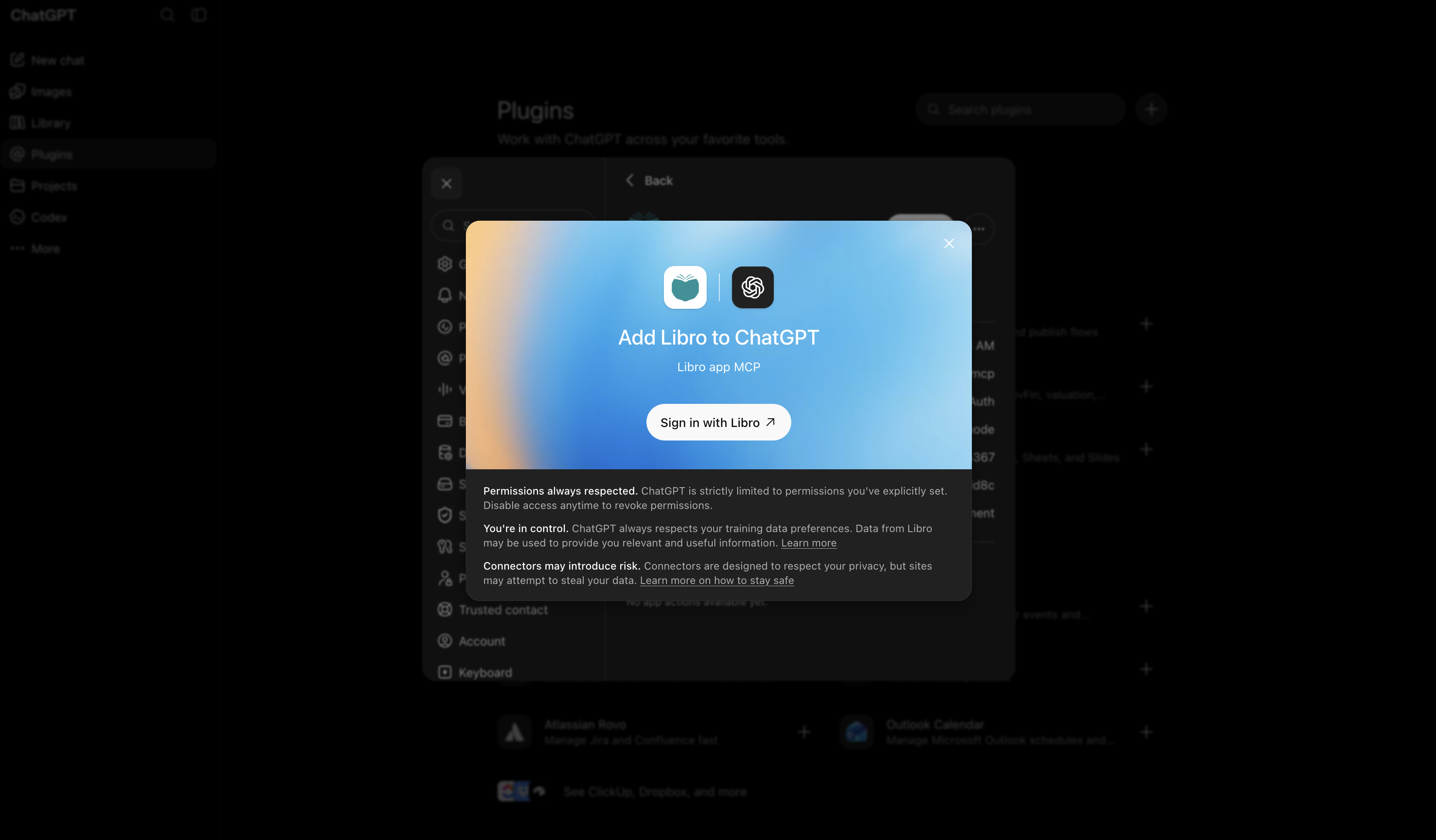
- On Add Libro to ChatGPT, choose Sign in with Libro. ChatGPT
opens Libro's OAuth authorization page.
- Sign in to Libro, choose the companies and permissions you want to share, review the disclosure, and approve access.
- Return to ChatGPT and enable Libro from the plugin menu. Start with the read-only company-list check below.
Libro exposes a remote Model Context Protocol (MCP) server. Compatible AI clients use OAuth, so you sign in to Libro in the browser and never paste a Libro password or token into a chat.
Before you start
Use an eligible standard company on Pro or Max. Free and Demo companies cannot be selected. Shared-company eligibility follows the owner’s plan, while your Libro role still limits changes. The client must support a public remote MCP server with OAuth.
The hosted endpoint is:
https://account.libro-app.com/api/mcpConnect and verify the app
- In ChatGPT or Claude, open the area for custom connectors or remote MCP servers and create a connection named Libro.
- Paste the exact endpoint above and begin the OAuth connection.
- Sign in to Libro, select only the companies the client needs, and start with read access.
- Approve the minimum permissions:
accounting:read,master-data:write,drafts:write, andtransactions:postonly as required. - Test read access by asking the client to list the authorized companies and return the company name, currency, bookkeeping method, and your role without changing anything.
- Compare a Trial Balance or short account list with Libro. For write access, inspect every prepared preview and explicitly confirm only when it is correct.
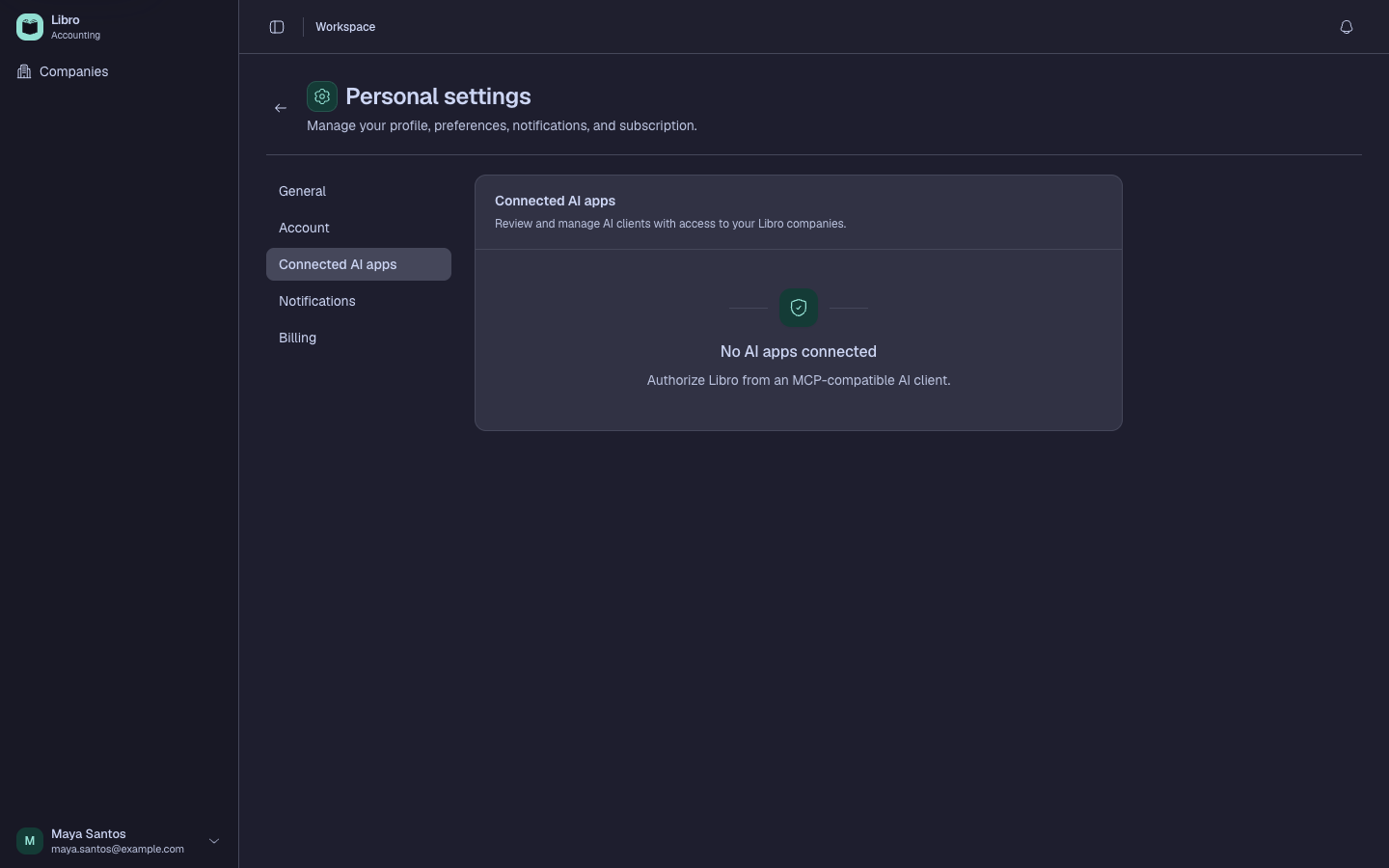
- Open Personal settings → Connected AI apps to review the client, companies, permissions, and last use; revoke access when it is no longer needed.
| Permission | What it allows |
|---|---|
accounting:read | Read selected company context, accounts, customers, suppliers, banks, members, ledgers, journals, cash books, and reports. |
master-data:write | Prepare and confirm new customers, suppliers, banks, association members, and cooperative members. |
drafts:write | Prepare and confirm draft journals, cash receipts, and cash disbursements. |
transactions:post | Separately prepare and confirm posting or unposting a supported transaction. |
Write tools use a two-step prepare-and-confirm flow. Preview tokens expire after ten minutes and can be used once. MCP cannot finalize, cancel, delete, administer companies, change settings, access billing, or run backups.
Check your work
The AI should list only authorized companies. A read request must leave Libro unchanged, and a confirmed draft should appear in the expected company with the previewed amounts and record history.
Common mistakes
- Connecting a Free or Demo company and assuming the client is broken.
- Granting write access before validating company selection and read-only results.
- Revoking the client only in ChatGPT or Claude; also revoke the Libro grant to stop refreshes and future calls.